Getting started
Users, roles and permissions
Give each member of your team their own login, group them into roles and choose exactly which pages each role can see, add to, change and delete.
Updated
How access works
- The owner is the admin login created in the console. The owner can use every page of the modules you subscribe to, can't be deleted, and is the only one who can edit the owner's own account.
- Users are the other people who sign in to the ERP. There's no limit on how many you add.
- Roles group users who do the same job, such as Cashier, Store keeper or Accountant. Each user has one role.
- Permissions decide, page by page, what a role can do: View, Insert (add), Update (edit) and Delete.
The right order is: create the role, save its permissions, then create the users who get it.
Create a role
- Open Roles and click +.
- Enter a Description, the role's name (3 to 100 characters), for example Cashier.
- Click Save.
Set a role's permissions
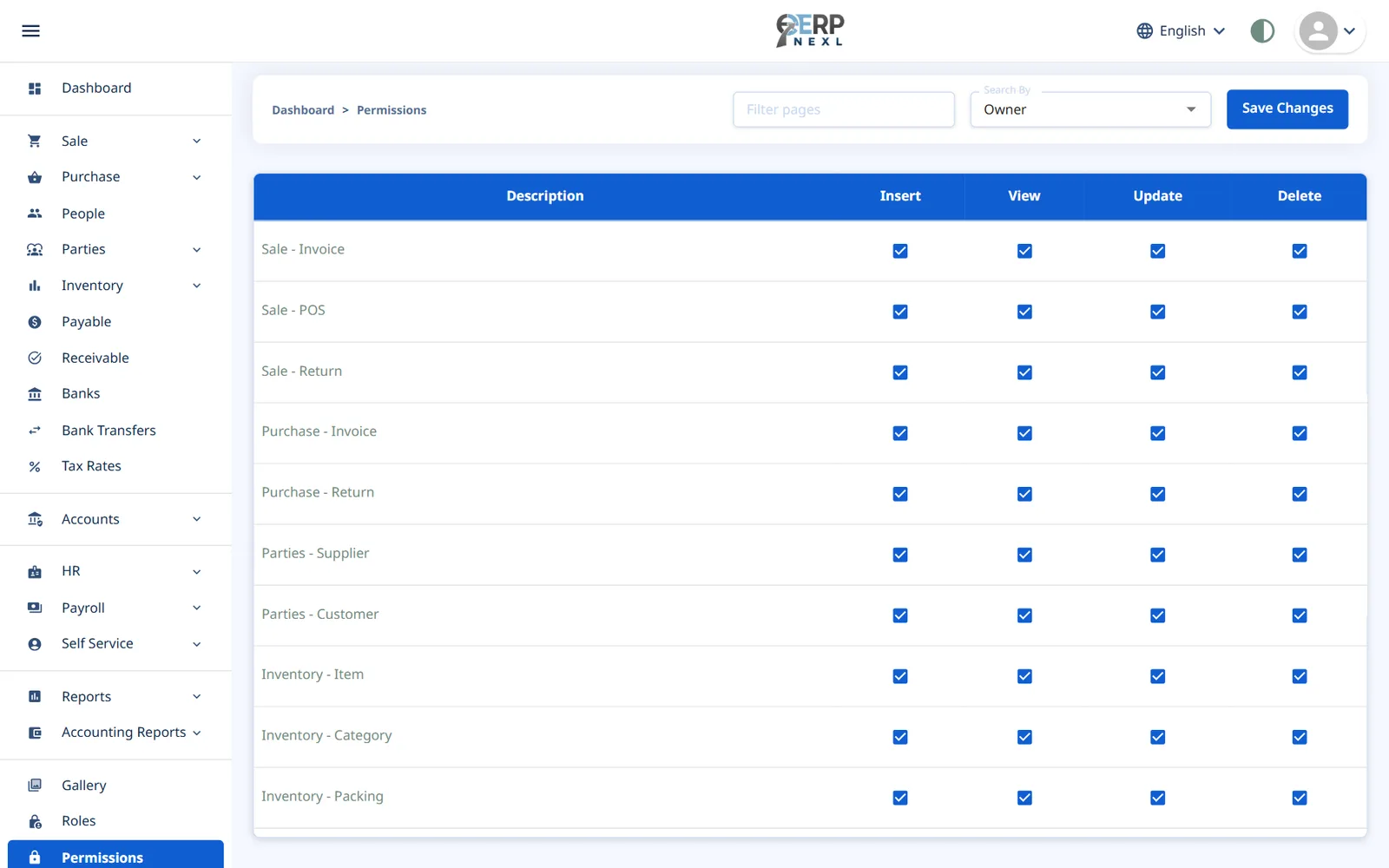
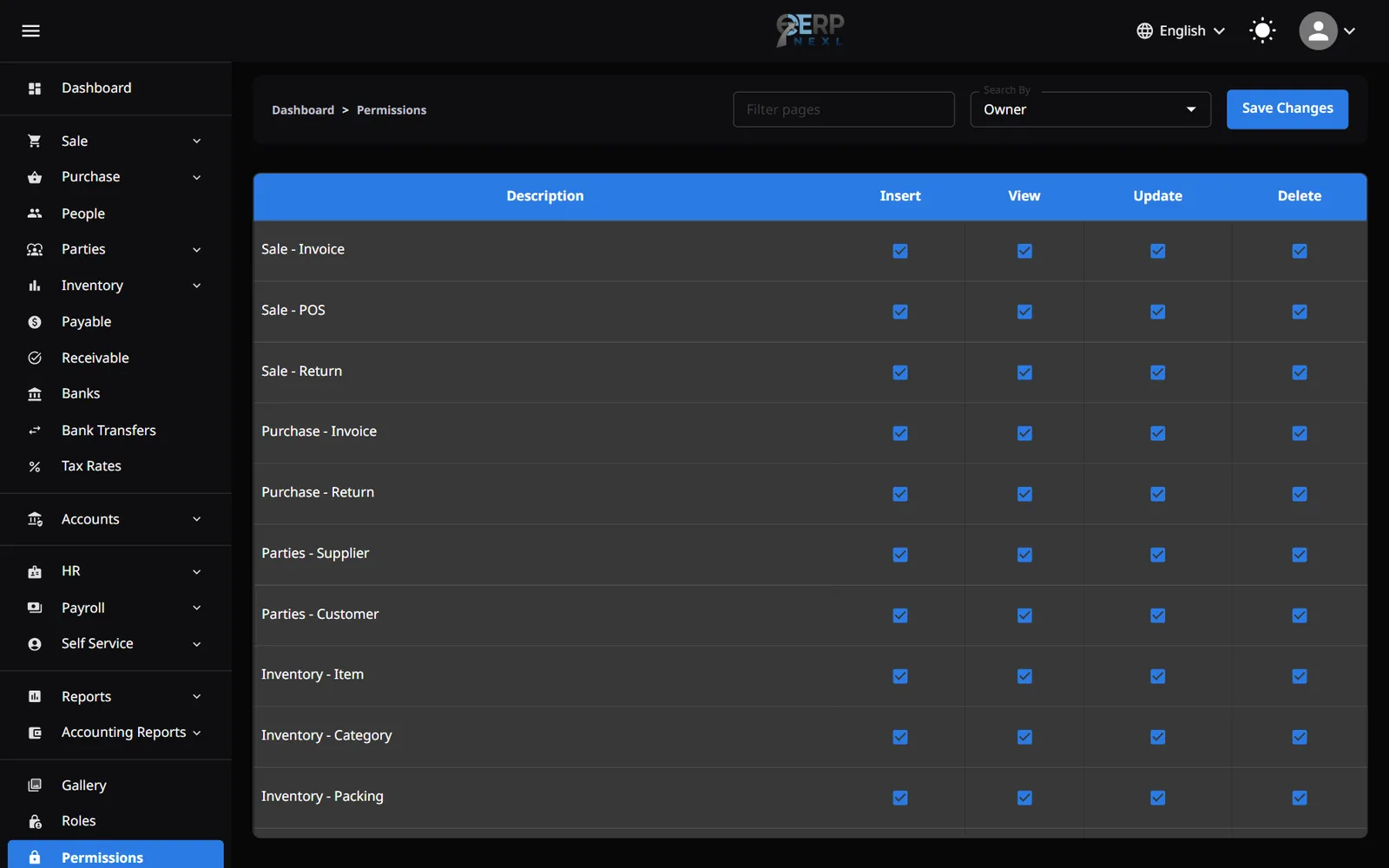
- Open Permissions.
- In Search By at the top, choose the role.
- Type in Filter pages to find a page quickly, or scroll through the list. There is one row for every page of the modules you have.
- Tick what the role may do on each page: View to see the page and its menu item, Insert to add records, Update to edit them and Delete to delete them.
- Click Save Changes.
- A page with nothing ticked disappears from that role's sidebar, and ERP Nexl refuses that page's actions for the role even if someone tries them another way.
- If a user tries something their role doesn't allow, they see a message such as Your role isn't allowed to add sale invoices. Tick the missing permission if they need it.
- Reports, the Dashboard and the Permissions page itself only have View. Settings has View and Update.
- Only the owner can change permissions.
Pages with special rules
| Page | What the permission controls |
|---|---|
| Payroll Runs | View is needed to see any salary figures (salary assignments, payslips, advances and payroll reports). Update is needed for every payroll action, including expense claims and advances. |
| Employee PII Access | Not a menu item. View lets the role reveal employees' full ID and bank account numbers; everyone else sees them masked. |
| Stock Adjustments | Only the owner had access when this page was added. Tick it for any other role that should correct stock. |
| Recipes, Production Orders, Cost Types, Production Reports | Only the owner has them at first. On Production Orders, Update covers issuing, returning and completing, and Delete covers cancelling and reversing. Revaluing an item and posting opening stock stay with the owner. |
| My Payslips, My Leave, My Attendance | Employee self service. Give these to the role your employees use (see Employee self service). |
Add a user
- Open Users and click +.
- Fill in First Name, Last Name, Email, Password, Date Of Birth and Contact.
- Choose the Role. The + next to it creates a new role on the spot (remember to save its permissions).
- Click Save. Give the person their email and password; they sign in at app.erpnexl.com.
- Edit changes a user's details and role, but not their password. Users change their own password from the avatar menu → Change Password, or with Forgot Password? on the sign-in page.
- Delete removes a user's access. You can't delete yourself or the owner, and nobody can change their own role.
- Adding, editing and deleting users needs the matching permission on the Users page (the owner always can).
- The + buttons that add a customer, supplier, item or bank from inside a form need Insert on that page too.
A simple starting setup
| Role | Give it |
|---|---|
| Cashier | POS: View and Insert. Nothing else. A role with POS but not Sale Invoice can only make the POS's own kind of sale: cash, to the Walk-in Customer, with no discounts. |
| Sales staff | Sale Invoice and Sale Return: View and Insert. Customer: View and Insert. Receivable: View and Insert. |
| Store keeper | Item, Category, Packing: all four. Stock Adjustments: View and Insert. Purchase Invoice and Purchase Return: View and Insert. Stock report: View. |
| Accountant | Everything under Accounts and Accounting Reports, plus Payable, Receivable, Banks and Bank Transfers. |
| Employee | My Payslips, My Leave (View, Insert and Update) and My Attendance. |
Need the whole guide offline? Can’t find an answer? Contact us.
Download PDF4.0 MB · 95 pages