Sales and purchases
Sales invoices and returns
Create cash and credit sales invoices, hold a sale for later, print invoices with your NTN and STRN, and take goods back with a sale return.
A sale invoice records what you sold, to whom, at what price and tax, and how much was paid. Saving it takes the items out of stock, adds any unpaid amount to the customer's balance and, with the Accounting module, posts the sale to your accounts. For quick counter sales, use the POS instead.
The invoice list
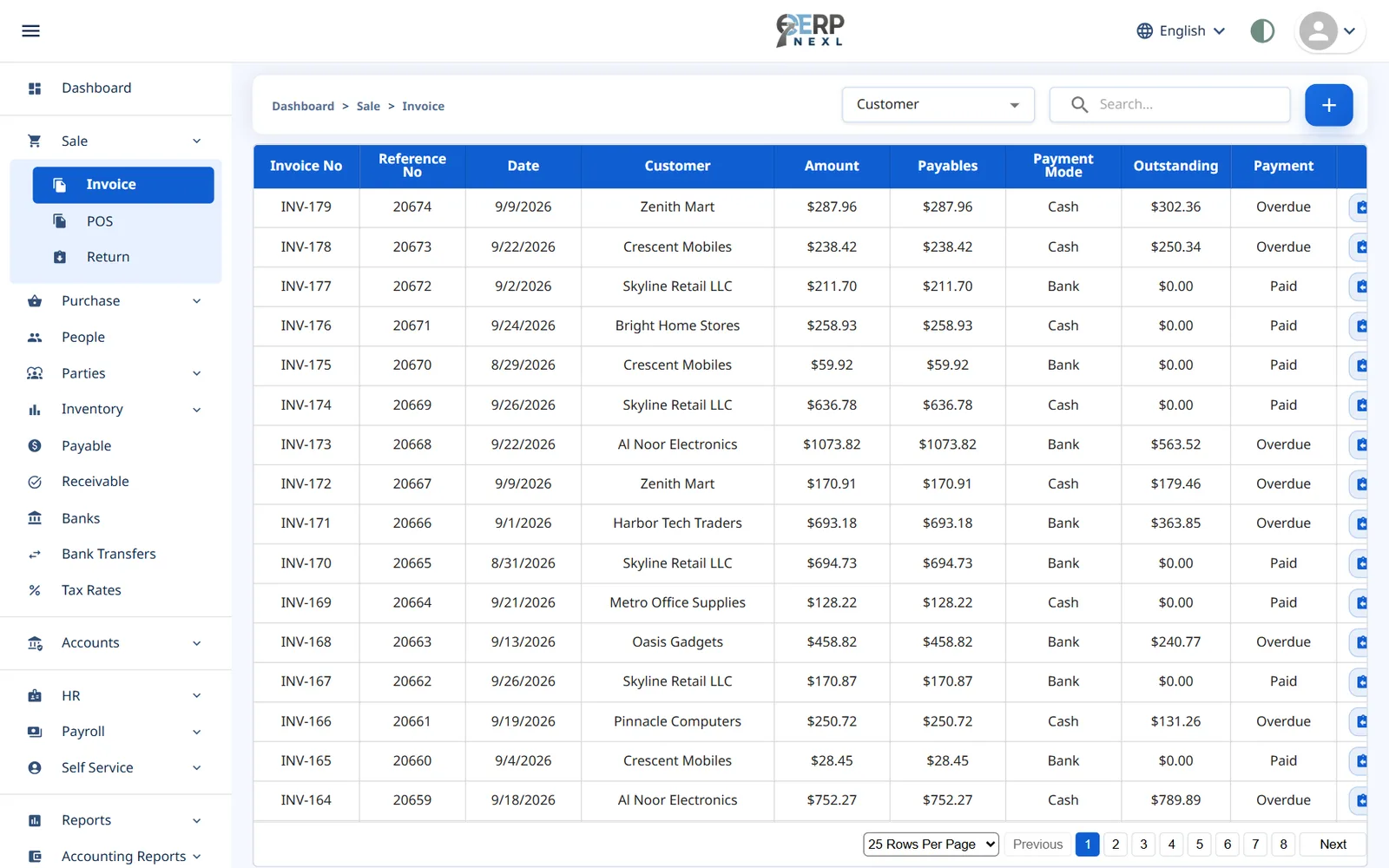
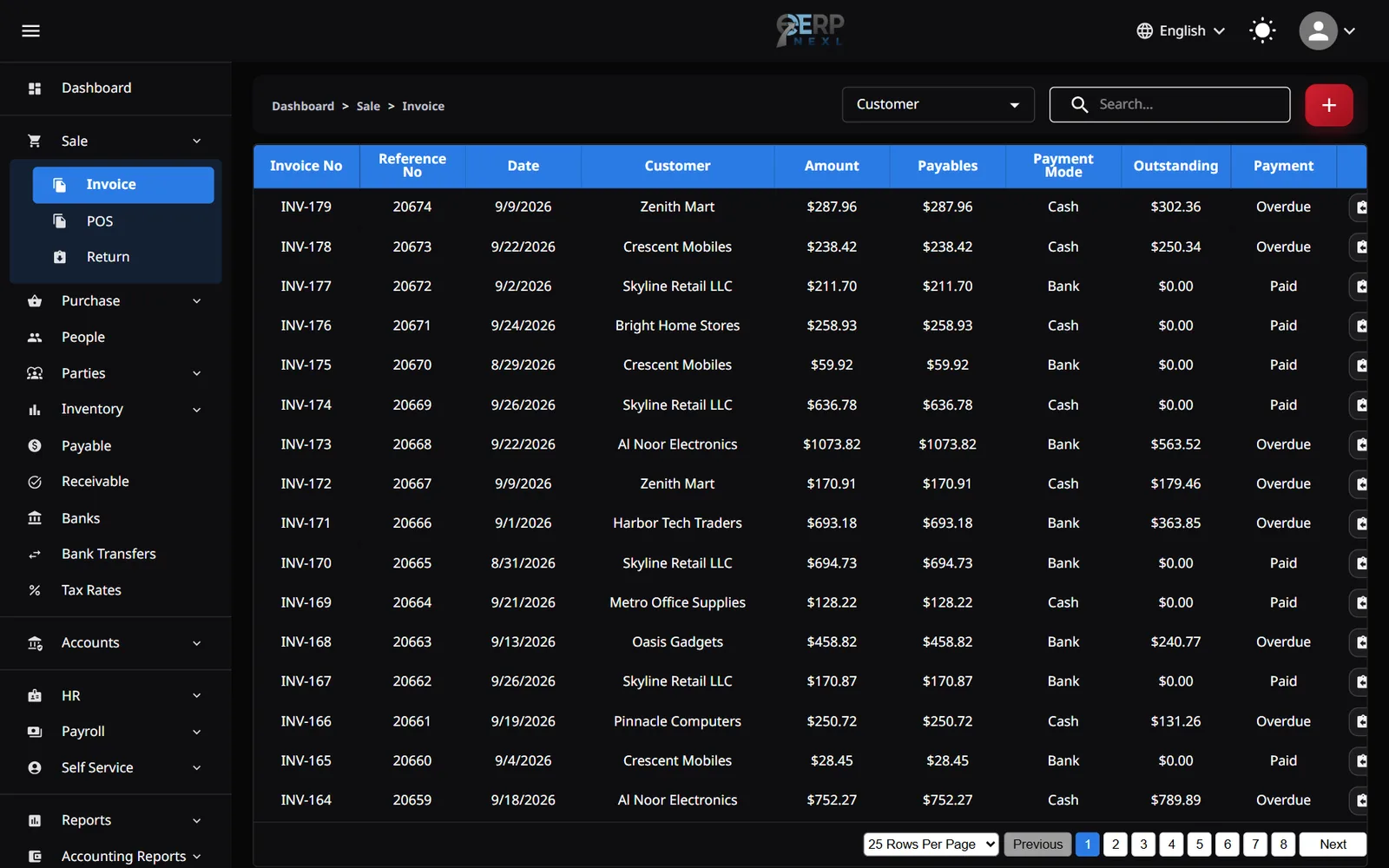
| Column | Meaning |
|---|---|
| Invoice No | Your invoice prefix from Settings plus the invoice's number. |
| Reference No | Your own reference, if you entered one. POS sales show POS-… here. |
| Amount | The total of the lines after line discounts, before tax. |
| Payables | The amount after the whole-invoice discount, before tax. |
| Outstanding | What the customer still owes on this invoice, including tax, after receipts and returns. |
| Payment | Paid, Partial, Unpaid, or Overdue for an unpaid invoice dated before today. |
POS sales appear in this list too, against the Walk-in Customer. Use Search By to search by customer, invoice number or another column. Each row has Return, Print, Edit and Delete buttons.
Create a sale invoice
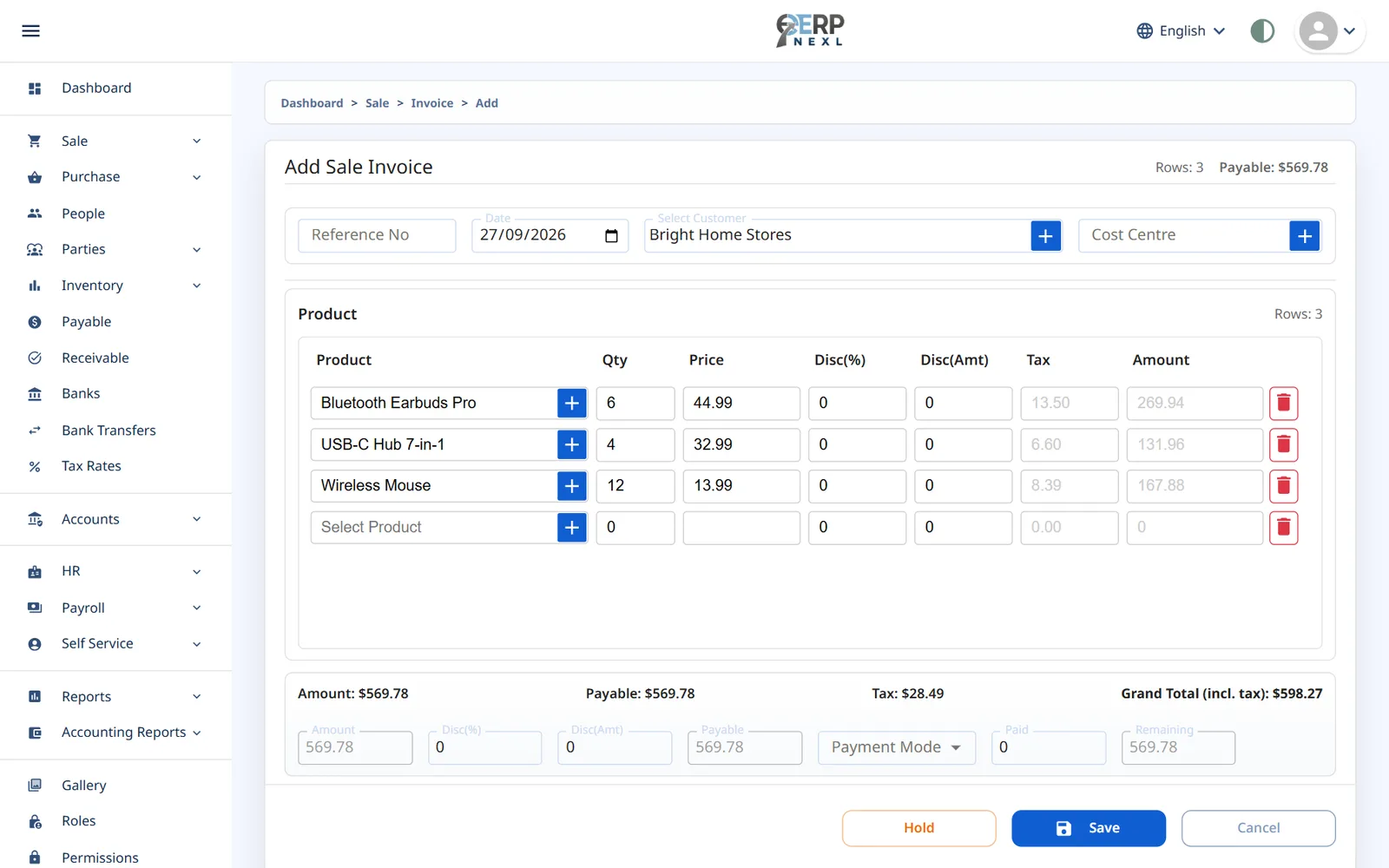
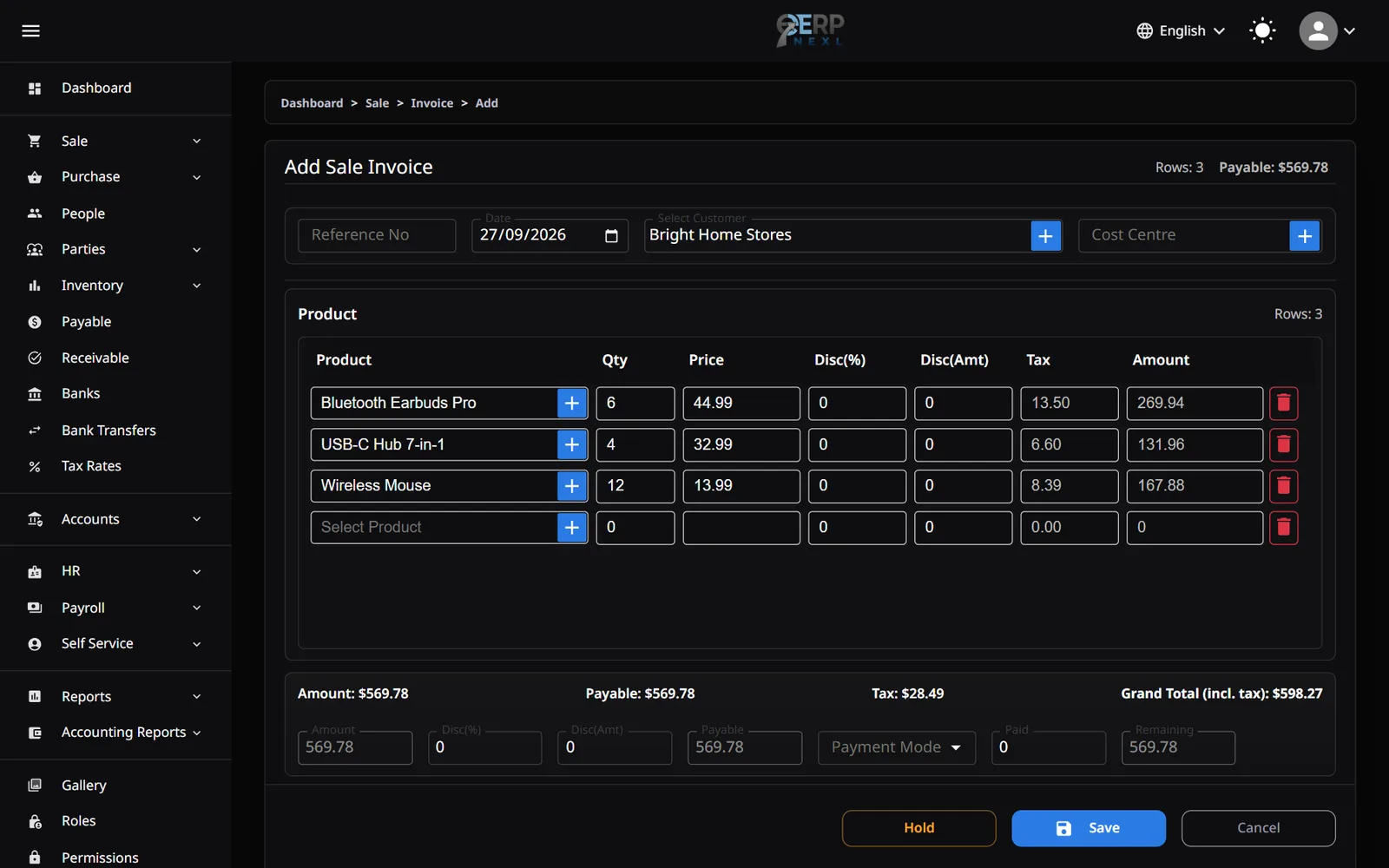
- Open Sale → Invoice and click +.
- Optionally enter a Reference No (numbers only, such as your order book number). Check the Date.
- In Select Customer, type a few letters and pick the customer. Their current balance is shown as Bal : …. Use + to add a new customer.
- In the first line, pick a Product. Its sale price and tax rate fill in, the quantity is set to 1 and the cursor moves to Qty. Change the quantity, and the Price if you agreed a different one.
- A new empty line appears automatically. Add as many items as you need; the bin icon removes a line.
- Add discounts if you use them: per line in Disc(%) or Disc(Amt), or for the whole invoice in the summary.
- Choose the Payment Mode. If you choose Bank, also choose which Bank account the money went into.
- In Paid, enter how much the customer paid now. Remaining shows the rest.
- Check the totals strip (Amount, Payable, Tax and Grand Total (incl. tax)) and click Save.
Cash and credit sales
- Cash sale: enter the full Grand Total in Paid.
- Credit sale: enter what was paid now, even 0. The Remaining amount is added to the customer's balance and collected later from Receivable.
- Payment Mode is required even for a credit sale; choose the mode the customer will normally use.
Rules to know
- Quantities must be more than 0, with up to 3 decimals (2.5 kg). Prices must be at least 1. Discount percentages go from 0 to 100.
- An item can be on an invoice only once; it's greyed out in the picker if it's already on another line.
- Items that are out of stock can't be picked. The quantity itself isn't checked against stock, so selling more than you have makes the stock negative.
- The tax rate comes from the item and can't be changed on the invoice (see how tax is worked out).
- Line discount columns and the whole-invoice discount only show if they are switched on in Settings.
- Invoices don't have a due date or credit terms. An unpaid invoice shows Overdue from the day after its date.
Hold an invoice for later
Click Hold to park a half-finished invoice, for example while a customer fetches one more item. A Held chip shows how many are waiting; click it and choose Resume to carry on, or the bin to discard one.
Print an invoice
Click Print on the invoice's row. Your browser's print window opens; choose a printer, or Save as PDF to email the invoice yourself. The printout shows:
- Your logo, company name, address, mobile number and, if set, your NTN and STRN (from Company & Admin in the console).
- Bill To: the customer's name, address, contact and email.
- The invoice number and date, then each line with its quantity, rate, any discount and amount.
- Subtotal, Discount, Payable, Tax, Total (incl. tax), Paid and Balance Due, and a line for an authorised signature.
Edit or delete an invoice
- Edit opens the invoice with everything you entered. Saving keeps the same invoice number and updates stock and the accounts to match.
- Delete asks for confirmation, then removes the invoice and reverses its stock and ledger entries. Its number is never reused.
- Once an invoice has a return against it, it can no longer be edited or deleted.
- With the Accounting module, invoices dated inside a locked period can't be edited or deleted.
Sale returns
A sale return records goods a customer brought back. Every return belongs to an invoice.
- Click the Return icon on the invoice's row in Sale → Invoice. Or open Sale → Return, click +, click Fetch Sale Invoice and pick the invoice.
- The customer, reference and date are copied from the invoice. Each line's Qty shows how many can still be returned.
- Enter the Return Qty for each item coming back. Prices and discounts stay as they were on the invoice.
- If you refund money now, enter it in Paid and check the Payment Mode (and Bank).
- Click Save.
Saving puts the items back into stock and reduces what the customer owes on that invoice by the return's value, less any refund you paid. With the Accounting module, the sale, tax and cost of goods sold are reversed for the returned items.
- A return takes the date of the original invoice.
- You can't return more than was sold, counting earlier returns. A fully returned invoice can't be fetched again.
- Returns can be printed from Sale → Return but not edited or deleted, so check the quantities before saving.
Need the whole guide offline? Can’t find an answer? Contact us.
Download PDF4.0 MB · 95 pages