Sales and purchases
Point of sale (POS)
Ring up counter sales quickly with product search or a barcode scanner, take cash, give change, print an 80 mm receipt and hold carts for later.
Open Sale → POS. The POS is built for fast cash sales at a counter. Each completed sale is saved as a sale invoice to the Walk-in Customer, so it updates stock, appears in the sale invoice list and reports, and, with the Accounting module, is posted to your accounts.
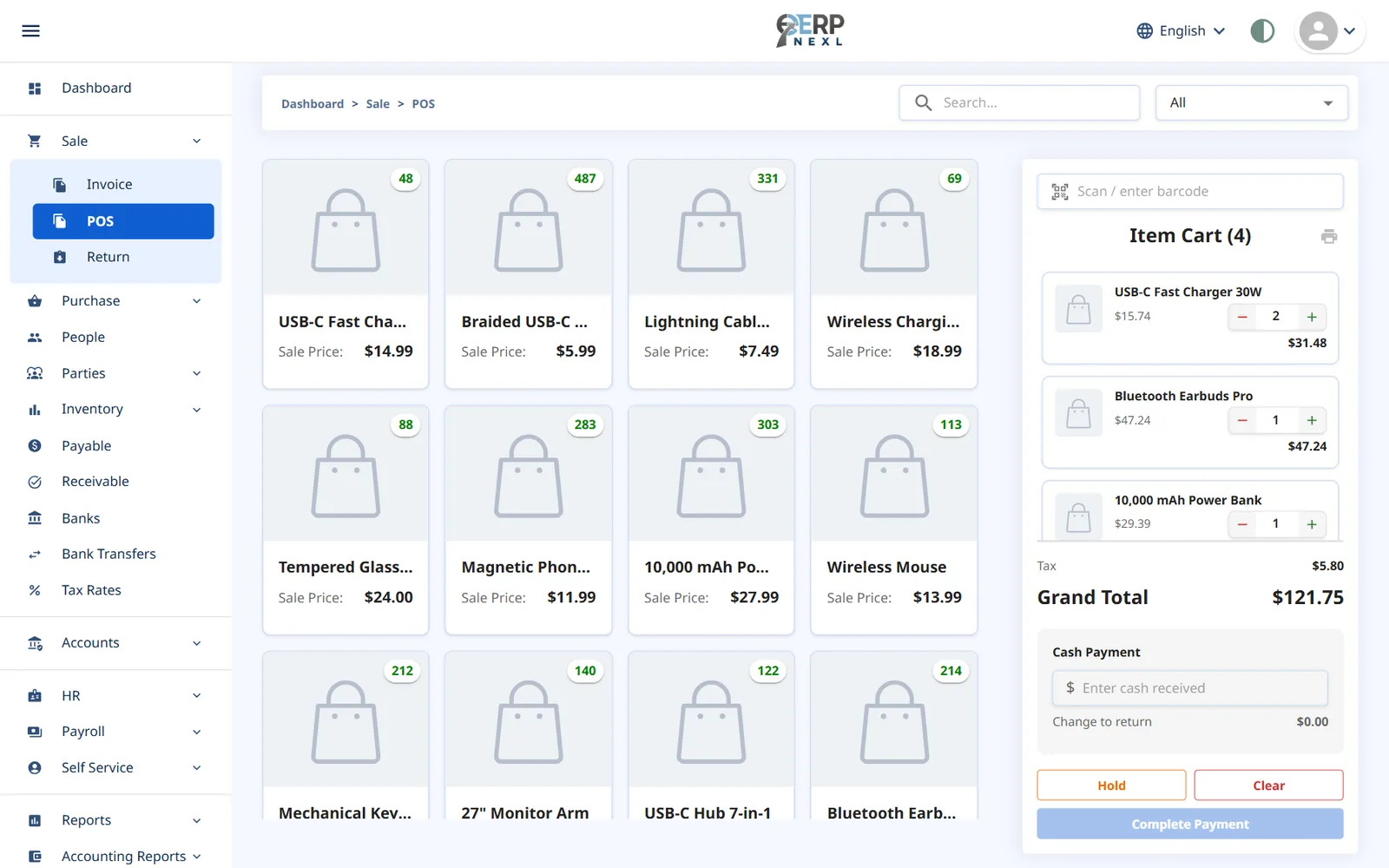
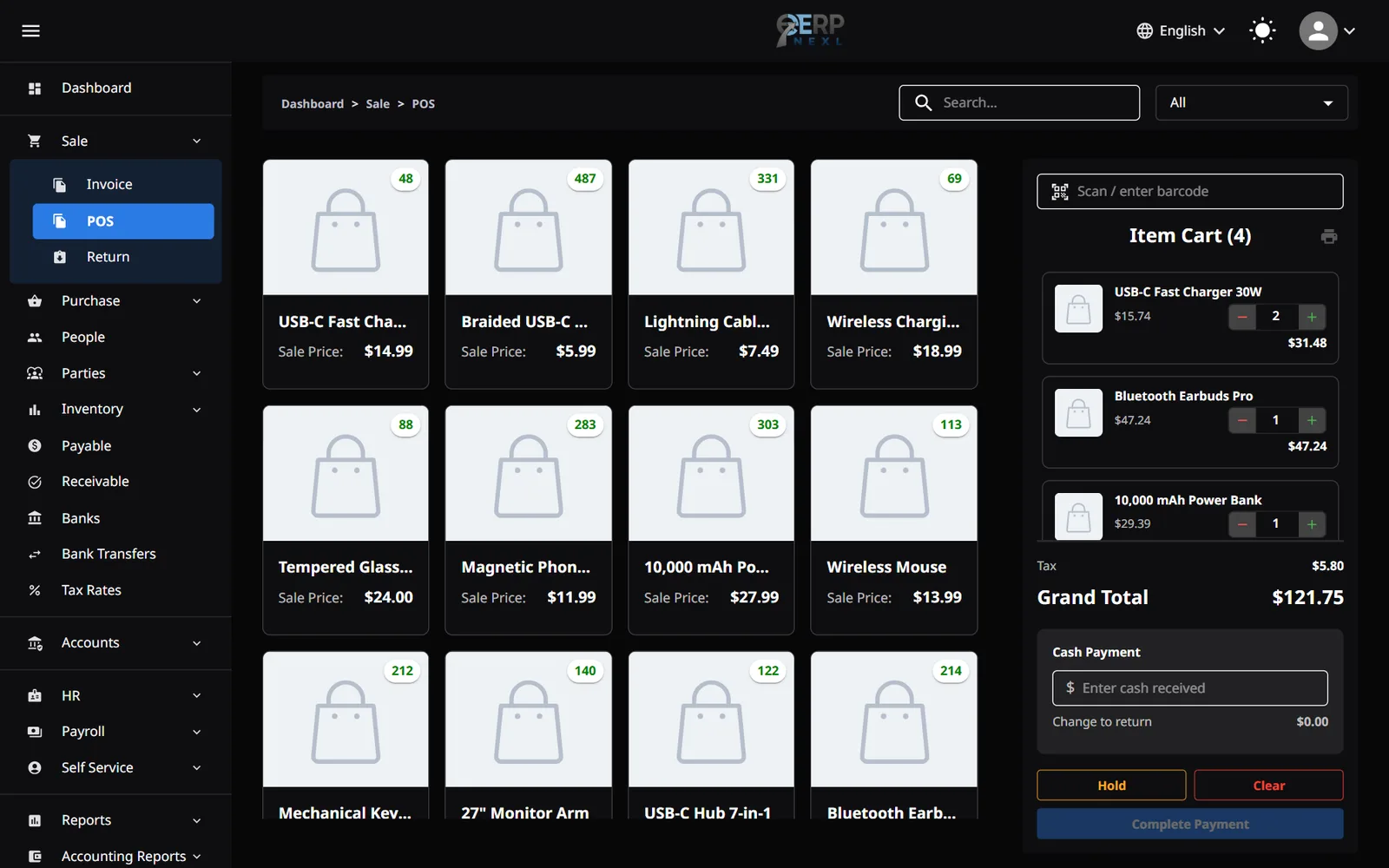
Make a sale
- Add items to the cart by clicking their product cards, or by scanning their barcodes. Use Search… to find a product by name, and the category filter to narrow the cards.
- Adjust quantities in the Item Cart with − and +, or type a quantity with up to 3 decimals (0.75 for 750 g). Setting a quantity to 0 removes the line.
- Check the Tax and Grand Total.
- Type the cash the customer gave you in Enter cash received. Change to return shows the change.
- Click Complete Payment. The sale is saved and the receipt prints.
Complete Payment stays disabled until the cash received covers the total.
Scanning barcodes
- A USB barcode scanner works straight away: just scan, without clicking into a box first.
- You can also type a barcode into Scan / enter barcode and press Enter.
- The barcode must match the item's Barcode exactly and be at least 4 characters long. If nothing matches, you'll see No product with this barcode.
Stock at the POS
- Each product card shows its stock: a green badge when in stock, red when at zero or below.
- Items with no stock can't be added (Out of stock), and you can't raise a quantity above the stock you have (Not enough stock available).
Hold and clear
- Hold parks the current cart so you can serve the next customer. The Held chip shows how many carts are waiting; open it and click Resume to bring one back.
- Clear empties the cart.
- Held carts are kept in this browser only and don't reserve stock.
The receipt
Receipts are laid out for 80 mm thermal printers and print through your browser's print window. Each receipt shows:
- Your logo and company name, and your NTN and STRN if set.
- The receipt reference (POS-…) with the date and time.
- Each item with its quantity, price and total.
- The number of items, the subtotal, the tax for each tax rate, the total, the cash received and the change.
The printer icon in the cart reprints the last receipt (until the page is refreshed).
What the POS doesn't do
To keep checkout fast, the POS is deliberately simple. For any of these, use a sale invoice instead:
- Payment by bank or card: the POS records cash only.
- Selling to a named customer or on credit: every POS sale goes to the Walk-in Customer, paid in full.
- Discounts or changing an item's price.
- Back-dating a sale: POS sales are dated today.
Need the whole guide offline? Can’t find an answer? Contact us.
Download PDF4.0 MB · 95 pages