Sales and purchases
Customers, suppliers and people
Add the businesses you sell to and buy from, record what they owed when you started, and follow every balance in their ledgers.
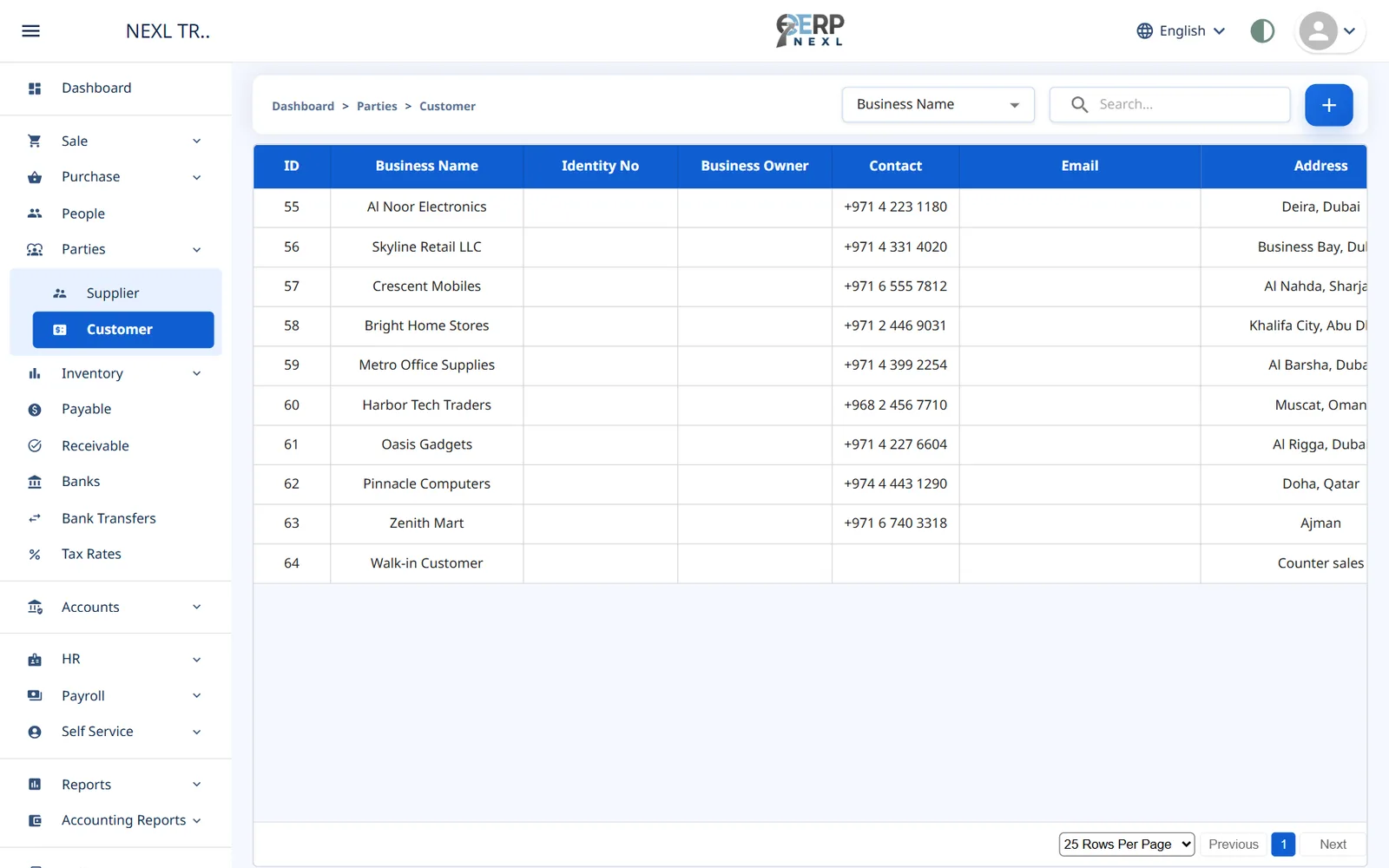
Customers and suppliers are both found under Parties. They work the same way, so this chapter describes customers and points out where suppliers differ.
People: the owner behind a business
Every customer and supplier is linked to a Business Owner, the person you deal with. These people are kept on the People page. You can add one from the customer form with the + next to Business Owner, or beforehand from People → +.
A person needs a First Name and Last Name (letters only, 3 to 20 characters each), Date Of Birth, Contact, Email and Address. People are only records; they can't sign in.
Add a customer
- Open Parties → Customer and click +.
- Enter the Business Name (up to 100 characters).
- Choose the Business Owner, or click + to add the person.
- Enter the Identity No (digits, with hyphens if you like, for example a CNIC or NTN), Contact No and Email.
- Enter the Opening Balance: what this customer owed you on the day you start using ERP Nexl. Enter 0 if nothing. It's posted to your books for you.
- Enter the Address (5 to 100 characters) and click Save.
All fields on the form are required. Suppliers are added the same way under Parties → Supplier, where the opening balance is what you owed them.
Balances and ledgers
The Balance column shows what each customer owes you, or what you owe each supplier, right now: the opening balance, plus invoices, minus payments and returns. The same balance appears as Bal : … when you pick the party on an invoice.
Click Ledger on a row to open Ledger Of that party: every invoice, return, receipt or payment with its Debit, Credit and running Balance. Click Print to give the customer a statement of account.
The Walk-in Customer
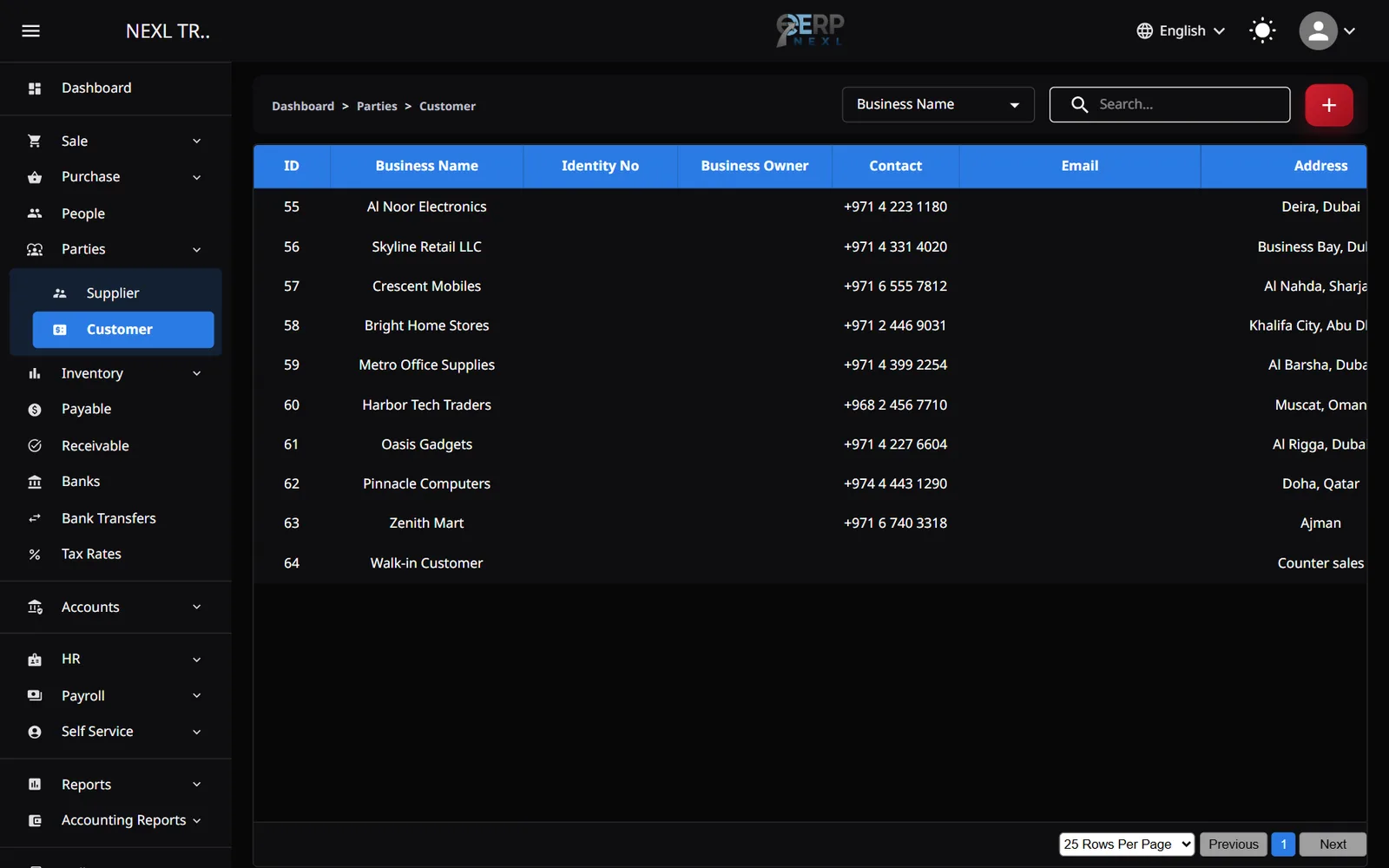
Each company has one customer called Walk-in Customer (address Counter sales). It is created automatically the first time you make a POS sale, and every POS sale is recorded against it. It appears in your customer list like any other customer, and you can choose it on a normal sale invoice for a cash customer you don't need to name.
Edit or delete a party
Use Edit on the row to change any detail. Delete removes the party from lists and pickers; documents already recorded keep their name. Before deleting a party with a balance, settle it first so your totals stay right.
Need the whole guide offline? Can’t find an answer? Contact us.
Download PDF4.0 MB · 95 pages