Items and stock
Stock levels and stock adjustments
See how much of each item you have, follow every movement in and out, and correct stock after a shelf count, damage, expiry or loss.
How stock is counted
ERP Nexl works out each item's stock from its Opening Quantity and every document that moves it. You never type stock levels directly.
| Stock goes up with | Stock goes down with |
|---|---|
| Purchase invoices | Sale invoices, including POS sales |
| Sale returns | Purchase returns |
| Stock adjustments that add stock | Stock adjustments that remove stock |
Deleting a document takes its movement out again. A document dated in the future only counts from that date.
Where to see stock
- Inventory → Item: the Stock column shows how many you have now.
- Item Ledger (the icon on each item's row): every movement by date with In, Out and a running Stock balance. You can print it.
- Sale invoices: the item picker shows Stock : N next to each item.
- POS: each product card has a stock badge, green when in stock and red when it's at zero or below.
- Reports → Stock: opening, in, out and closing quantities for every item over a date range (see Business reports).
Out-of-stock rules
- An item with no stock left can't be added to a sale invoice or the POS cart (Out of stock).
- At the POS you can't raise the quantity above the stock you have (Not enough stock available).
- On a sale invoice, the quantity isn't checked against stock, so selling more than you have makes the stock negative. Fix that with a purchase or a stock adjustment.
Stock adjustments
Use Inventory → Stock Adjustments whenever the stock in the ERP doesn't match what's on your shelves: after a stock count, or when goods are damaged, expired, lost, stolen or found. Each adjustment keeps a record of the date, the reason and every item changed.
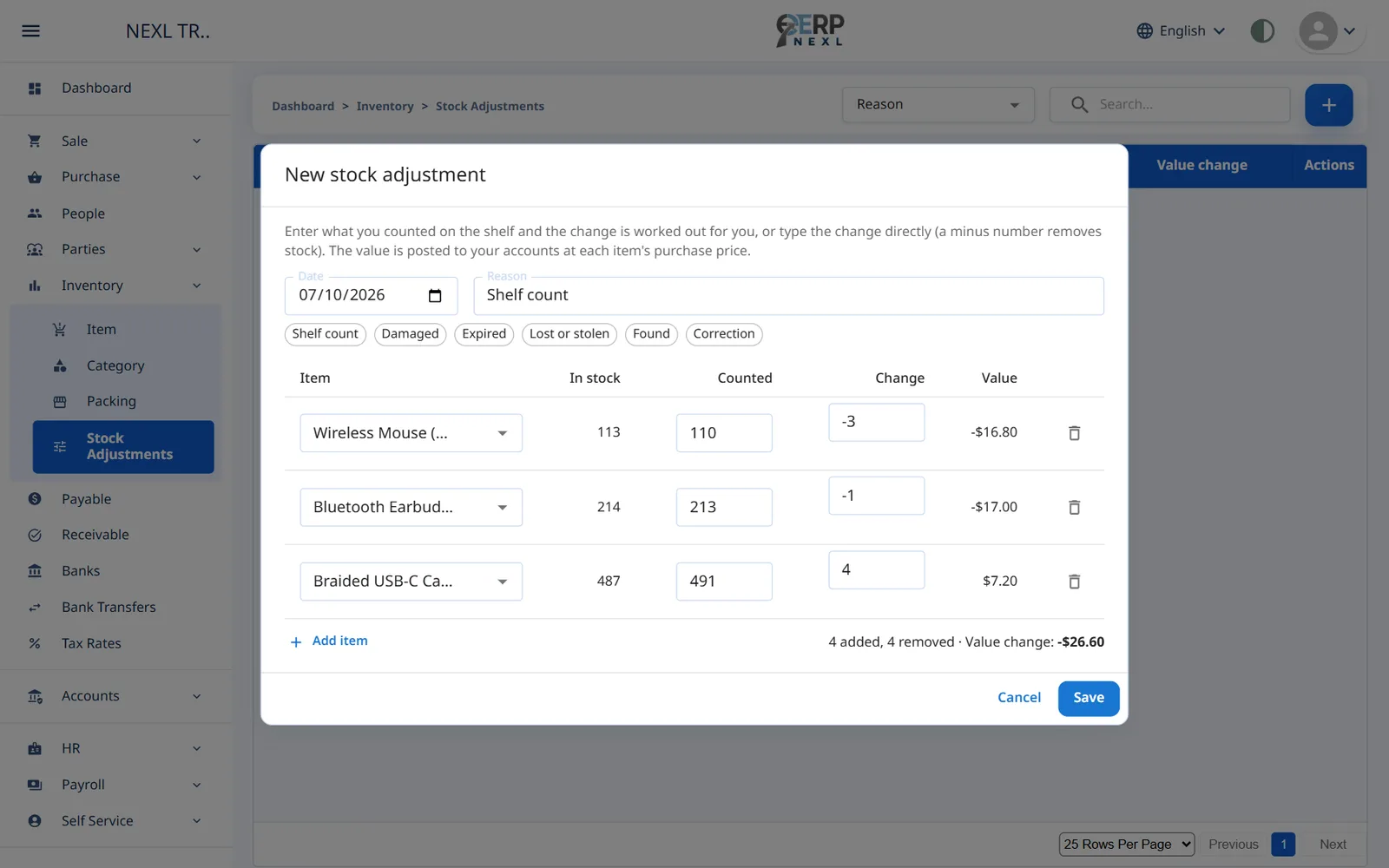
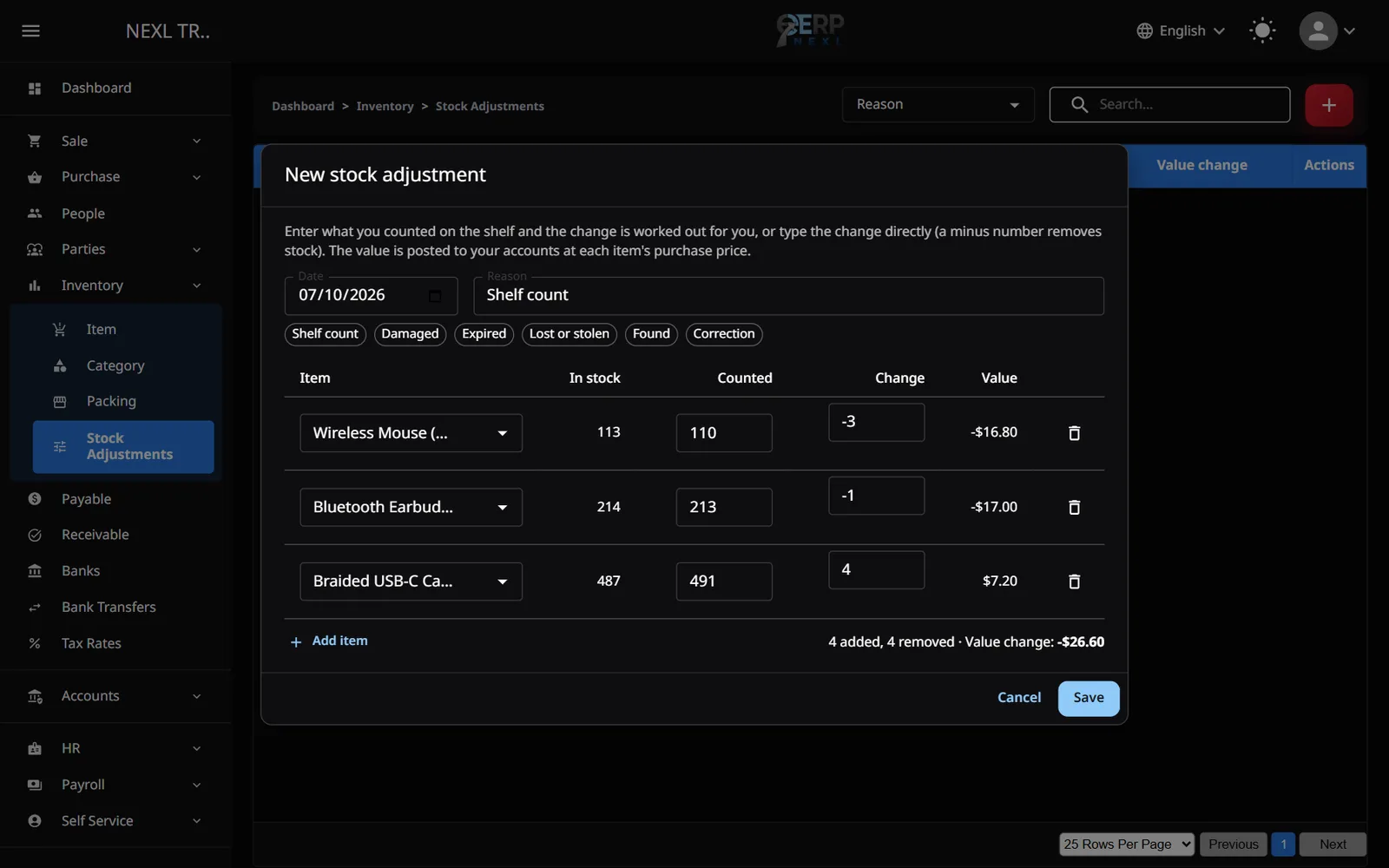
Record a shelf count
- Open Inventory → Stock Adjustments and click +.
- Check the Date, then enter a Reason or click one of the ready-made reasons: Shelf count, Damaged, Expired, Lost or stolen, Found or Correction.
- Under Item, choose an item (type its name or barcode). In stock shows how many the ERP thinks you have.
- Type the quantity you actually counted in Counted. The Change fills itself in, for example counted 110 with 113 in stock gives −3.
- Click Add item for the next item and repeat.
- Check the total at the bottom (units added, units removed and the value change), then click Save.
Record a direct change
If you know the difference rather than the count, for example 2 damaged units, choose the item and type the Change directly: a minus number removes stock (−2), a plain number adds it (5).
Rules
- Quantities can have up to 3 decimals, and each line must change the stock. If a count matches In stock, remove that line.
- Each item can appear only once in an adjustment, with up to 500 items per adjustment.
- Goes below zero is a warning only; you can still save.
- In stock is today's stock, even if you back-date the adjustment.
Edit or delete an adjustment
Use the Edit and Delete buttons on the adjustment's row. Saving an edit replaces all its lines. Deleting it puts the stock back as it was, and with the Accounting module the accounting entry is removed too.
What it does to your accounts
Each line is valued at the item's Purchase Price, shown in the Value column. For stock being added you can type a Cost per unit instead (for example goods found with their supplier's bill): the line is valued at that cost and the item's purchase price becomes the average of the stock you hold, with any rounding to the Inventory Cost Variance account. Editing or deleting the adjustment undoes it. Leave Cost per unit empty to use the item's current cost. With the Accounting module, saving posts one journal entry: stock added increases Inventory against the Stock Adjustment expense account, and stock removed does the opposite. Items with no purchase price have no value. If the date is inside a locked period, the adjustment can't be saved, edited or deleted.
Need the whole guide offline? Can’t find an answer? Contact us.
Download PDF4.0 MB · 95 pages