Getting started
Settings and personal preferences
Set your company's currency symbol, discount options and invoice number prefixes, then make the ERP your own: language, font, text size, line height, colours, profile, password and guided tours.
There are two kinds of settings. Company settings apply to everyone in your company. Personal preferences (language, font, text size, line height, theme colours, profile and password) apply only to you.
Company settings
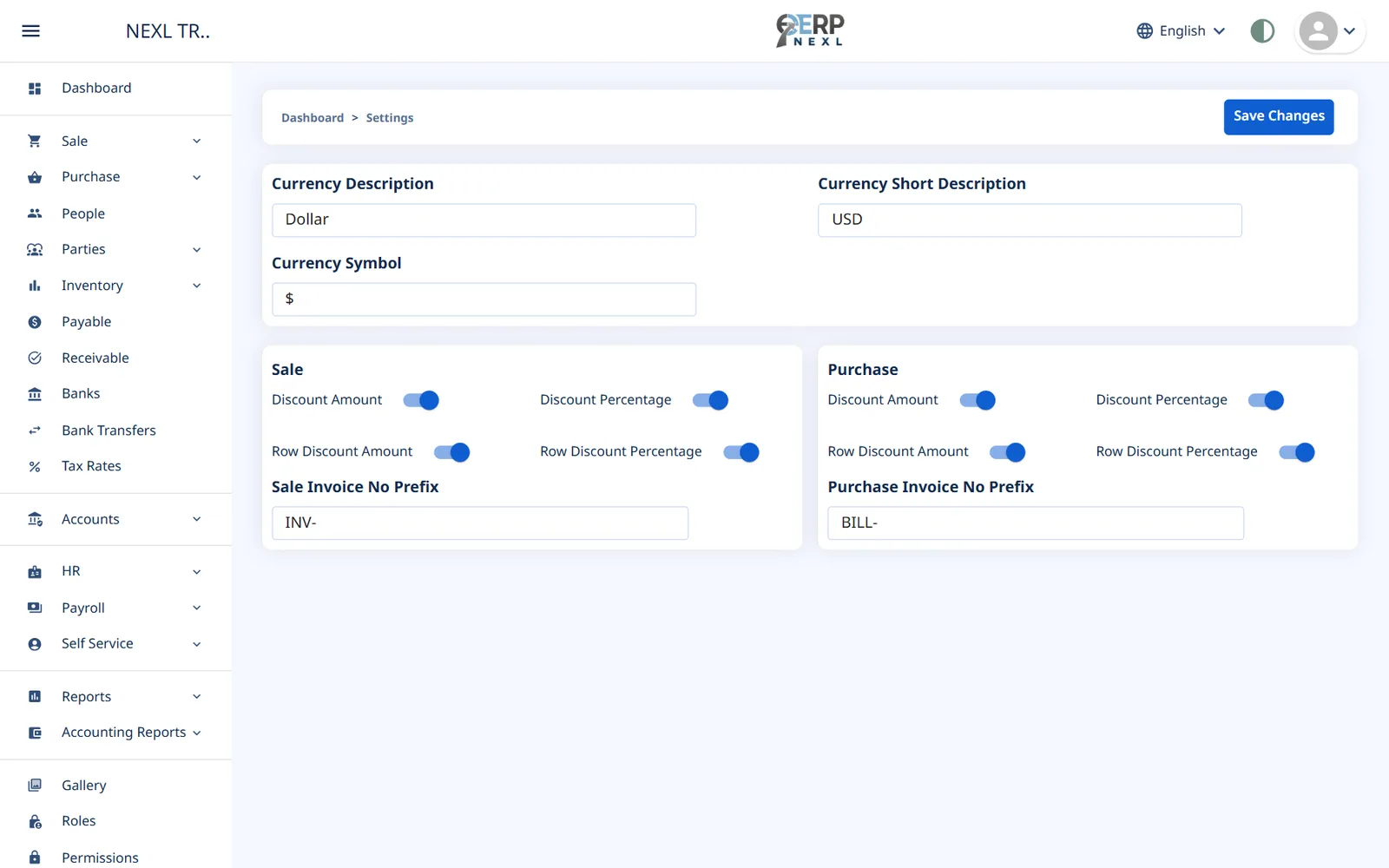
Open Settings at the bottom of the sidebar. Change what you need and click Save Changes. Other users see the changes the next time the ERP loads in their browser.
| Setting | What it does |
|---|---|
| Currency Symbol | Shown with every amount: cards, lists, invoices, POS, receipts and reports. New companies start with Rs. |
| Currency Description and Currency Short Description | The currency's name and code (for example Pakistani Rupee and PKR), kept for reference. |
| Discount Amount / Discount Percentage | Show or hide the whole-invoice discount fields on sale (or purchase) invoices and their printouts. |
| Row Discount Amount / Row Discount Percentage | Show or hide the discount columns on each invoice line. |
| Sale Invoice No Prefix / Purchase Invoice No Prefix | Text shown before invoice numbers in lists and printouts, for example INV- gives INV-125. |
| Update item cost from purchases | Under Costing. When on, every purchase updates the item's Purchase Price to the average cost of the stock you hold (see below). On for new companies; only the account owner can change it. |
Seeing the Settings page needs the View permission for Settings, and saving needs Update.
Average cost from purchases
With Update item cost from purchases on, saving a purchase averages the item's cost with the stock you already hold. For example, 10 units on hand at 100 plus 10 bought at 120 gives a cost of 110. Editing or deleting the purchase undoes its effect on the cost. The cost is what sales, returns and stock adjustments are valued at, so it stays close to what you actually paid.
- Costs are kept to 2 decimals. The cent or two that rounding leaves over goes to the Inventory Cost Variance account (5420), so your stock value and your accounts always agree.
- A purchase return doesn't change the cost: the goods leave stock at the current cost, and any difference from the return price goes to Inventory Cost Variance.
- The cost moves in the order you enter documents, not by their dates. Enter purchases before you sell or produce from them.
- Turning the setting on applies from that moment; earlier purchases aren't recalculated. With it off, purchases never change the cost and you keep the Purchase Price up to date on the item yourself.
Language
- Click the globe and language name in the top bar.
- Choose English, العربية (Arabic) or اردو (Urdu).
Arabic and Urdu switch the whole layout to right-to-left, including printouts. Your choice is remembered in this browser, so each person can work in their own language.
Light and dark theme
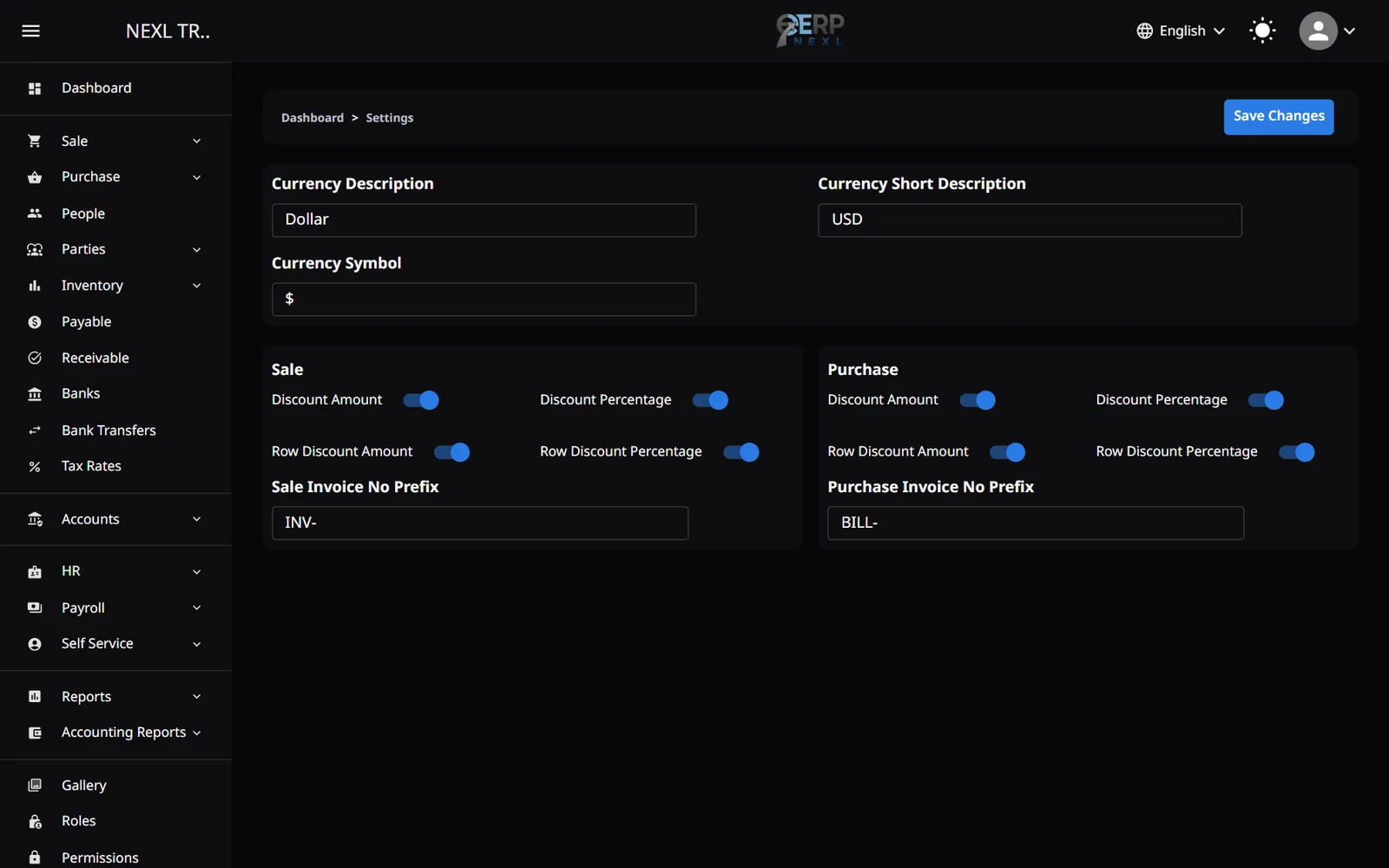
The half-filled circle in the top bar switches between light and dark. To change the font, text size, line height or the colours themselves, open your avatar menu → Appearance:
- Choose a Font: Noto Sans Arabic, Times New Roman or Arial. It applies to both themes; Company default keeps your company's standard font.
- Choose a Text size: Small, Normal, Large or Extra large. It makes all text on screen smaller or bigger; printouts always print at the normal size.
- Choose a Line height: Compact, Normal, Relaxed or Spacious, for less or more space between lines of text. Printouts keep the normal spacing.
- Pick the Light Theme or Dark Theme tab.
- Choose your Primary Colour, Page Background, Cards & Panels, Text & Icons and Borders.
- Click Save. Reset to Default goes back to the original colours.
Appearance is saved to your login, so it follows you to other computers and doesn't change anyone else's screen.
Your profile and password
- Avatar menu → Profile opens Update Profile: first name, last name, email, date of birth and contact. Your email is your sign-in name, so changing it changes how you sign in.
- Avatar menu → Change Password: enter your current password, then the new one (at least 6 characters) twice.
- Avatar menu → Logout signs you out. In the same browser, signing out of the ERP also signs you out of the console, and the other way round.
Guided tutorials
Avatar menu → Tutorials lists 26 short tours, grouped into Sales, Purchases, Inventory, Parties, Money, Accounting, HR, Payroll & Self-Service, Production and Administration. A tour highlights the real screen and tells you what to click; press Next to move on, or Esc to stop. Finished tours get a tick. You only see tours for modules you have and pages your role can open.
Ask us a question
Avatar menu → Queries opens Have a Query? Let Us Know. Type your question (3 to 100 characters) and send it to the ERP Nexl team. For longer questions, use the contact page.
The gallery
Gallery holds your company's pictures: product photos for items and the POS, and pictures of users.
- Open Gallery and click Upload Image.
- Choose the Destination, Product or User, and click Next.
- Pick the image file from your computer.
Use View By to show all images, product images or user images. Click an image to see its name, size and type; the pencil replaces the file and the X deletes it.
Need the whole guide offline? Can’t find an answer? Contact us.
Download PDF4.0 MB · 95 pages