Sales and purchases
Receipts and payments
Record money received from customers and paid to suppliers, and apply it to the exact invoices it settles.
When a customer pays an invoice after the sale, record it under Receivable. When you pay a supplier after the purchase, record it under Payable. Money paid at the moment of the sale or purchase is entered in the invoice's Paid field instead, so don't record it twice.
Receive a payment from a customer
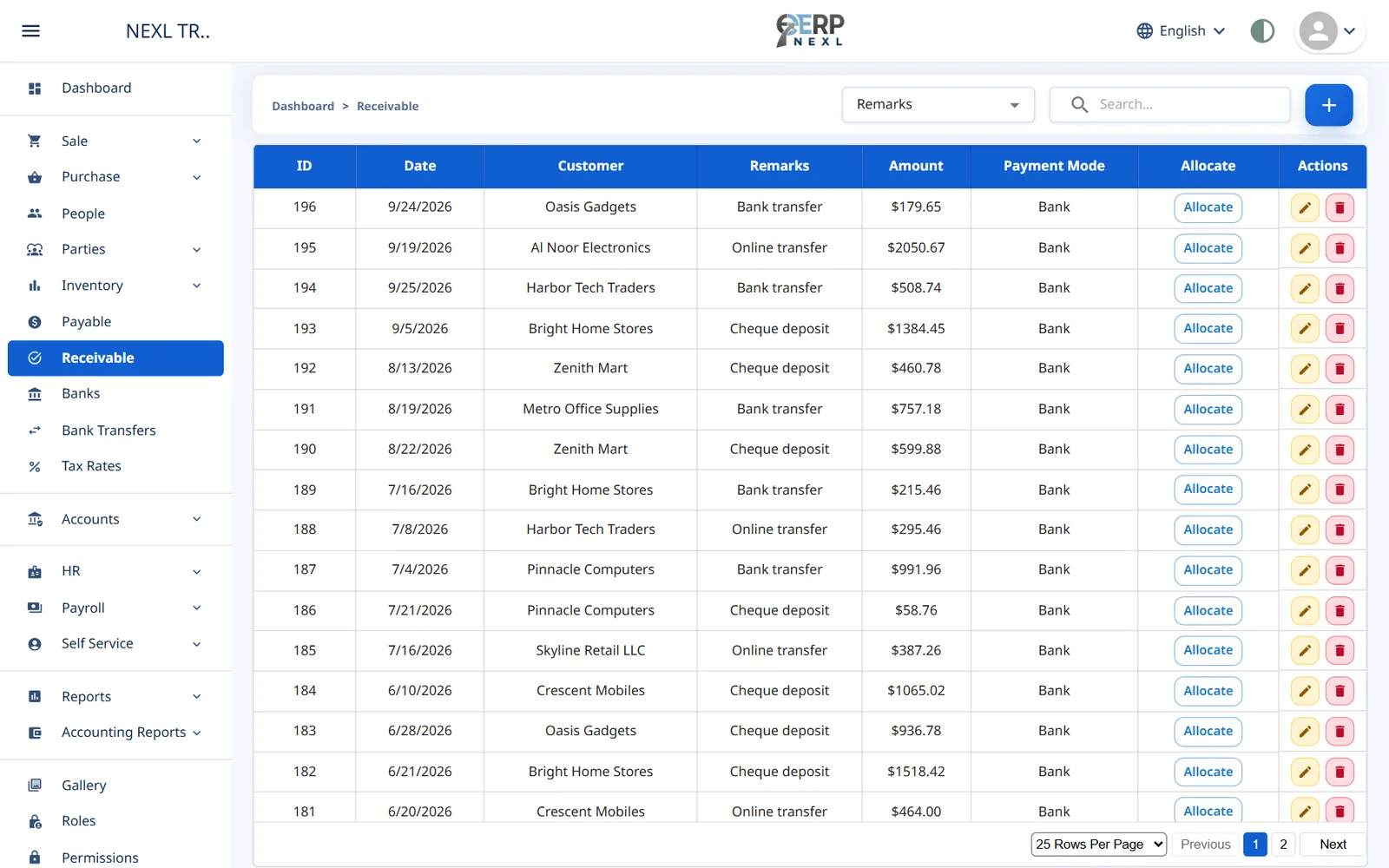
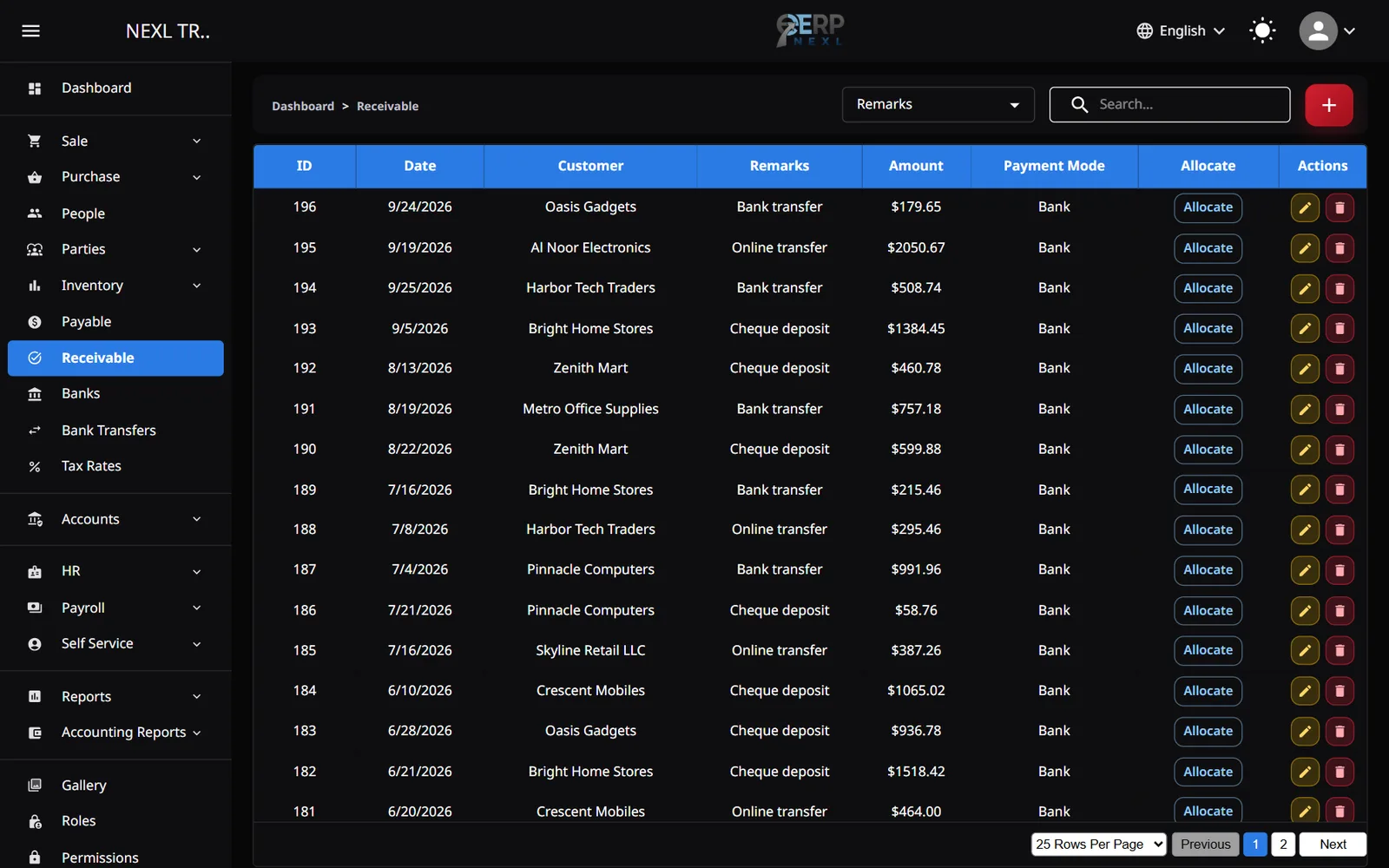
- Open Receivable and click +.
- Check the Date and choose the Customer.
- Enter the Amount received and, optionally, Remarks such as a cheque number.
- Choose the Payment Mode. For Bank, choose the Bank account the money went into.
- Click Save. The Apply to invoices window opens next.
Apply a payment to invoices
Apply to invoices lists the customer's open invoices, oldest first, each with its date and Outstanding amount. The amount is already spread over the oldest invoices; change the Allocate boxes if the customer told you which invoices they're paying.
- Check or change the amount in each invoice's Allocate box. You can't allocate more than an invoice's outstanding amount.
- Watch the footer: it shows the amount, how much is allocated and how much will stay on account.
- Click Save to apply it, or Keep on account to apply none of it for now.
- Money left on account stays as credit on the customer's balance. Apply it later with the Allocate button on the receipt's row; doing so replaces the earlier allocation.
- Allocation decides which invoices show as Paid or Partial and what the aged receivable report shows as overdue. The customer's total balance is the same either way.
- Closing the window with × applies nothing. Editing a receipt doesn't reopen the window; use Allocate.
- Opening balances aren't listed as invoices, so a payment against an opening balance stays on account.
Pay a supplier
- Open Payable and click +.
- Choose the Supplier, enter the Date, Amount, Remarks and Payment Mode (and Bank).
- Click Save, then apply the payment to the supplier's open purchase invoices in Apply to invoices, exactly as for customers.
Banks and payment modes
Choosing Bank as the payment mode on an invoice, return, receipt or payment shows a Bank list. Pick the account so the money appears in that bank's balance and ledger on the Banks page. If you leave it empty, the money isn't counted in any bank's balance.
Need the whole guide offline? Can’t find an answer? Contact us.
Download PDF4.0 MB · 95 pages