Getting started
Getting started
Create your account, set up your company and its admin login, then sign in to the ERP and learn your way around.
ERP Nexl has two parts that work together, and each has its own sign-in:
- The console at erpnexl.com is where you create your account and company, choose modules and manage billing. You sign in with the account you signed up with.
- The ERP at app.erpnexl.com is where the daily work happens: sales, stock, banks, accounts, payroll and production. You sign in with the admin login you create for your company, and later with the users you add for your team.
This chapter takes you from sign-up to your first sign-in to the ERP. It takes about ten minutes.
Create your account
- Go to erpnexl.com/signup.
- Fill in First name, Last name, Email, Password (at least 6 characters), Date of birth and Contact number, then click Create account.
- Check your email for a 6-digit code. Type it in and click Verify & continue. The code is valid for 10 minutes; if it doesn't arrive, click Resend code after 60 seconds.
- Your account is created and you land on the console Dashboard. Your free trial has already started.
Your free trial
Every new account gets a one-month free trial that includes every module, with no card needed. Each account can use the trial once. When it ends, buy the modules you want to keep from Pricing; see Plans, billing and the console.
Create your company
- In the console, open Company & Admin and click Create company.
- Fill in Company name, Email, Contact and Address.
- Optionally add a Logo, your NTN (National Tax Number) and your STRN (Sales Tax Registration Number). These print at the top of your invoices, receipts and reports.
- Click Create company.
Add your admin login
As soon as the company is created, the Add your admin form opens. The admin is the login you use to sign in to the ERP, and it is the company's owner: it can open every page of the modules you subscribe to, whatever its role says.
- Enter the admin's First name, Last name, Email, Contact, Date of birth and Password.
- Click Create admin.
Sign in to the ERP
- In the console sidebar, click Launch app. The ERP opens at app.erpnexl.com in a new tab.
- Enter the admin's Email Address and Password, then click Sign in.
You stay signed in for 24 hours. After that, the ERP asks you to sign in again.
If you forget the password
- On the ERP sign-in page, click Forgot Password?.
- Enter your email and click Send Otp, then type the code from your email and verify it.
- Enter a new password (at least 5 characters) and click Update Password.
Find your way around
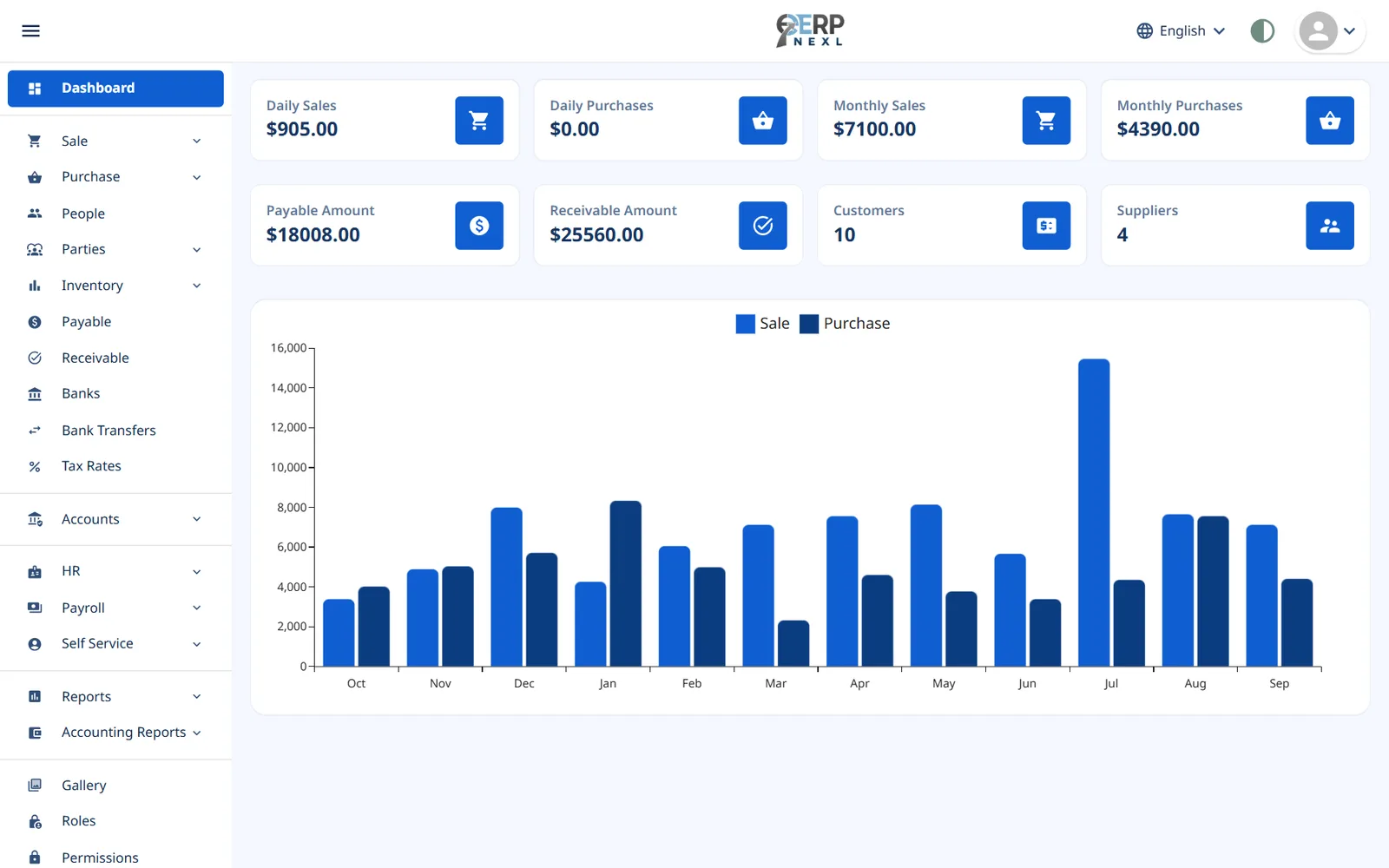
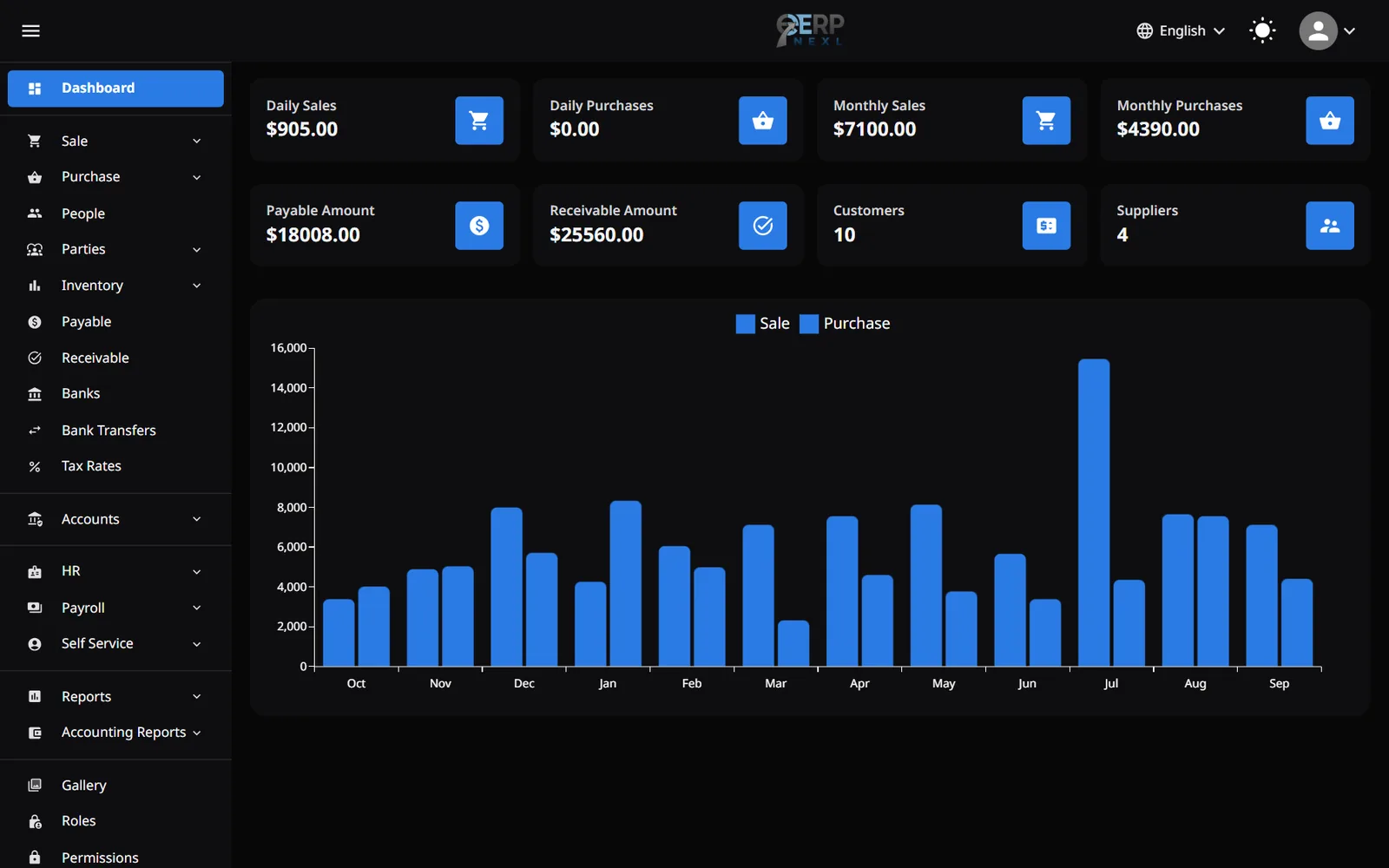
- The sidebar on the left lists the menus for the modules you subscribe to. A user only sees the pages their role allows (see Users, roles and permissions). Click the ☰ icon at the top to fold it away.
- The top bar has the language switch (the globe), the light/dark switch, and your avatar menu with Profile, Appearance, Change Password, Tutorials, Queries and Logout.
- List pages (customers, items, invoices and so on) work the same way everywhere: choose a column in Search By, type in Search…, click + to add a record, and use the row's buttons to edit, delete or print it.
- Dates in new forms start at today's date.
The dashboard
With the Sale & Purchase module, the dashboard shows:
| Card | What it shows |
|---|---|
| Daily Sales / Daily Purchases | Today's invoices (POS sales included), after discounts and including tax. |
| Monthly Sales / Monthly Purchases | The same for the current calendar month. |
| Payable Amount | The total of all supplier payments recorded on the Payable screen, all time. |
| Receivable Amount | The total of all customer receipts recorded on the Receivable screen, all time. |
| Customers / Suppliers | How many of each you have. |
| Chart | Sales and purchases for each of the last 12 months. |
Without the Sale & Purchase module, the dashboard shows counts for the modules you have instead, such as journal vouchers, employees, leave requests and payroll runs. With the Production module it also shows production cards.
Your first week: a setup checklist
Work through these in order and the ERP will be ready for real transactions. Skip the steps for modules you don't use.
- Check the currency symbol, discount switches and invoice number prefixes in Settings.
- Add your tax rates.
- Add categories, packing labels and items, with the quantity you have in stock today as each item's Opening Quantity.
- Add your customers and suppliers, with any balances they owe or are owed.
- Add the bank accounts you pay and get paid through.
- Create roles and users for your team, and save each role's permissions.
- Accounting module: review the chart of accounts and account mapping, then enter your opening balances.
- HR & Payroll module: set up departments, holiday lists and employees, then payroll.
- Production module: add your materials as items, write your recipes, then plan your first production order. Without the Accounting module, post your opening stock once.
Need the whole guide offline? Can’t find an answer? Contact us.
Download PDF4.0 MB · 95 pages