HR and payroll
Payroll
Define salary components and structures, assign salaries, then run, review, post and pay monthly payroll. Also covers expense claims, employee advances and payroll reports.
Payroll is calculated from each employee's salary assignment, attendance, unpaid leave and holiday list. Set up HR first. Payroll works without the Accounting module; its entries are kept and appear in your accounts if you add Accounting later.
Salary components
Components are the lines on a payslip, such as Basic Salary, House Rent Allowance, Conveyance or Income Tax. Open Payroll → Salary Components and click +:
| Field | What to enter |
|---|---|
| Code and Component Name | A short unique code (for example HRA) and the name shown on payslips. |
| Kind | Earning (adds to pay) or Deduction (takes from pay). |
| Calculation | Percent of base: a percentage of the employee's base salary. Fixed: an amount set in the salary structure. |
| Percent | For Percent of base, the percentage, for example 45. |
| Prorated | Tick it to reduce the amount for unpaid days and part months. It starts unticked, so tick it for pay that depends on days worked. |
| Sort Order | The order of lines on the payslip. |
| Account Mapping Key | Leave blank: earnings post to Salaries Expense and deductions to Payroll Deductions Payable. |
The first time you process a run, ERP Nexl adds three standard components if you don't have them: BASIC (Basic Salary, 100% of base, prorated), TAX (Income Tax, a fixed deduction) and ADV (Advance Recovery).
Salary structures
A structure is a set of components for a group of employees, such as Staff or Managers.
- Open Payroll → Salary Structures, click +, enter the Structure Name and save.
- Click the Lines icon on the structure's row.
- Add each Component. For a Fixed component, enter its Amount; leave it blank for a percentage component.
A fixed amount applies to everyone on that structure. A structure or component that is in use can't be deleted.
Assign salaries
- Open Payroll → Salary Assignments and click +.
- Choose the Employee and Structure, enter the Base Salary and the Effective From date, and save.
- For a raise, add a new assignment with the new base salary and its effective date. The previous one ends automatically the day before.
- To correct a mistake, assign again with the same Effective From date.
- If a salary changes mid-month, that whole month uses the newest assignment.
- Employees without an assignment are skipped by payroll runs.
Run payroll
- Open Payroll → Payroll Runs and click New Run. Choose the Year and Month, keep Type as Regular, add a Narration and save. The run is a Draft.
- Click Process. ERP Nexl calculates a payslip for everyone employed that month who has a salary assignment.
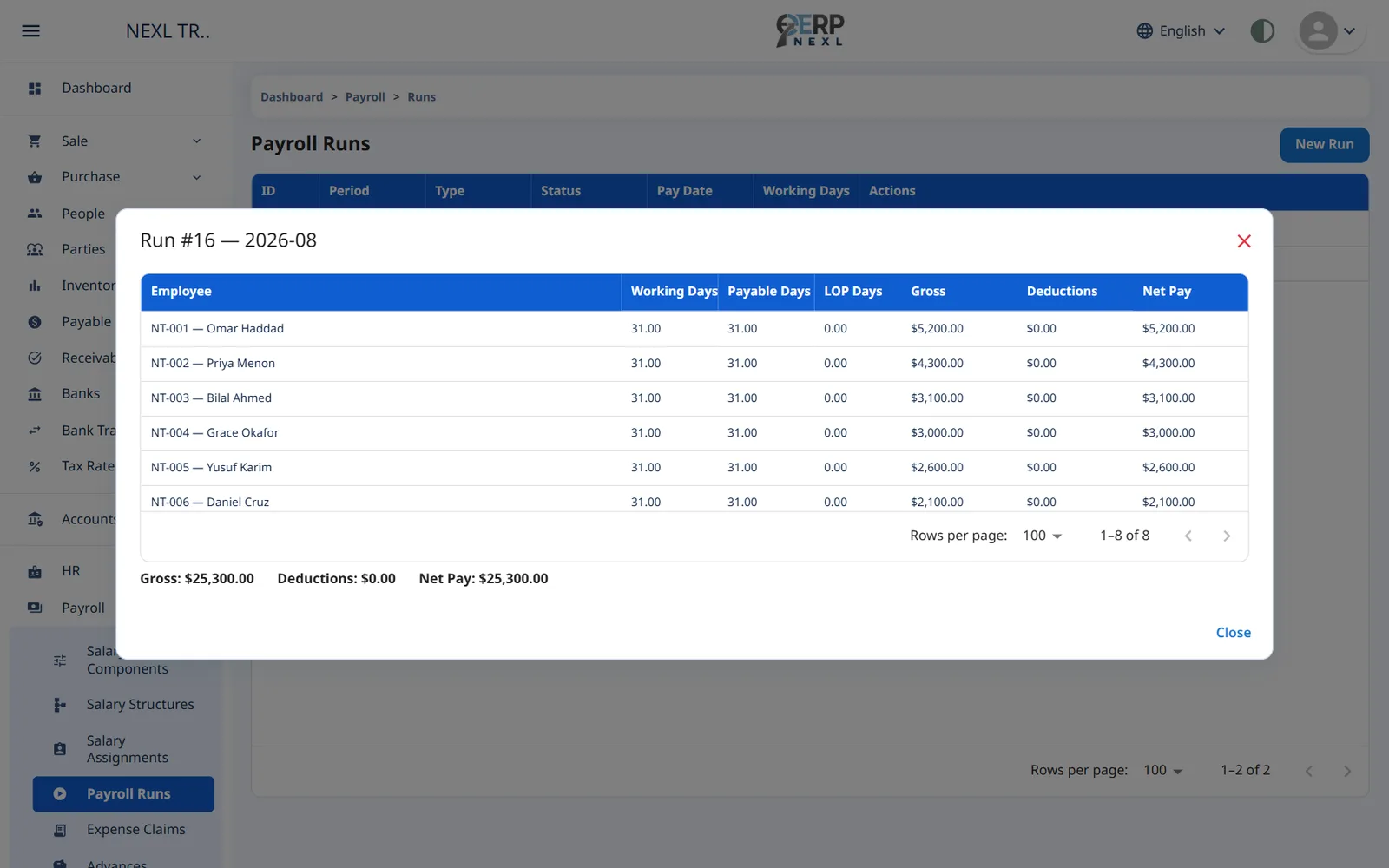
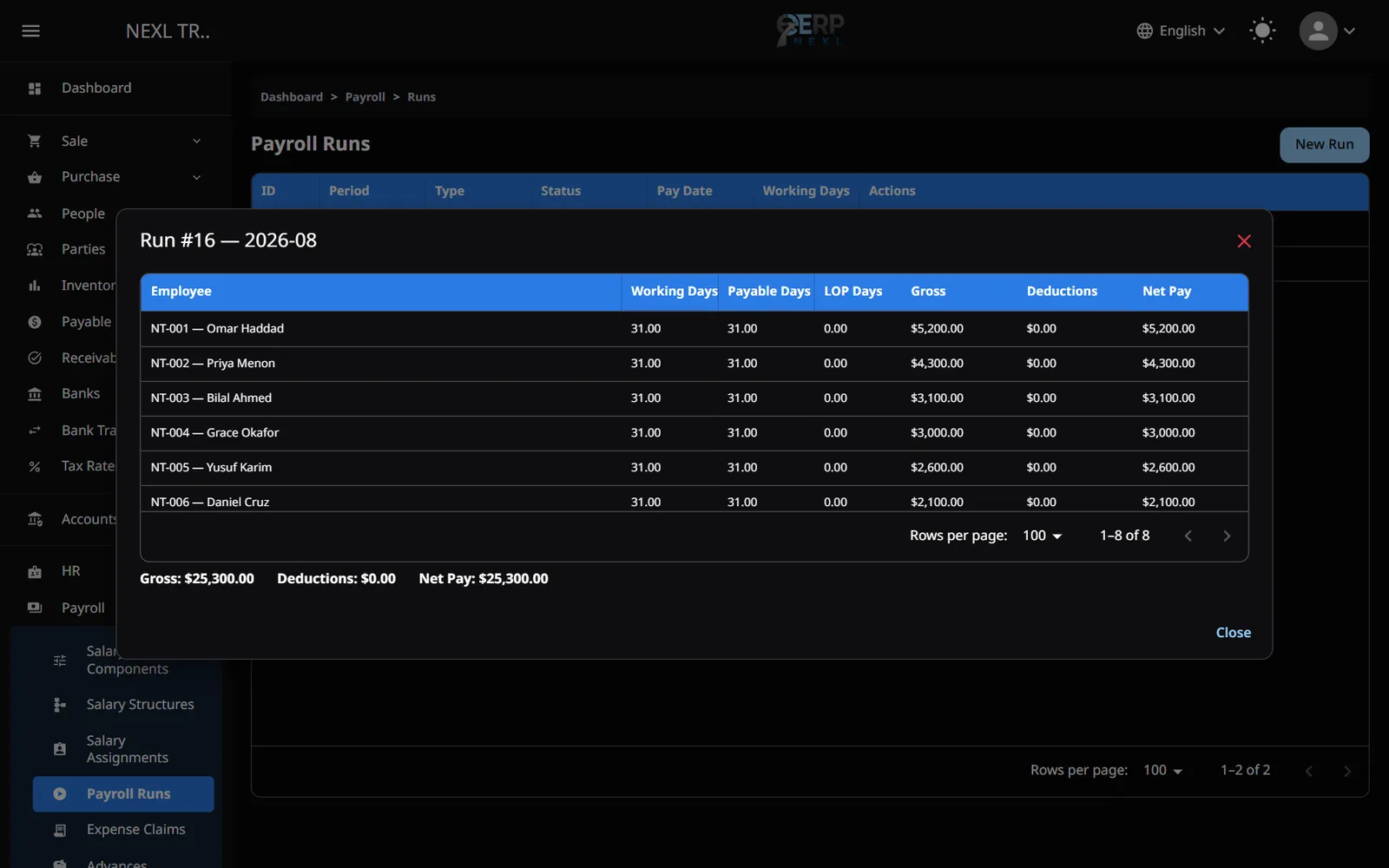
- Click Review and check each employee's working days, payable days, unpaid (LOP) days, gross, deductions and net pay. Click an employee to see their payslip lines and how each was calculated.
- Something wrong? Click Reopen to go back to Draft, fix attendance, leave or salaries, and process again.
- Click Post when it's right. The salary entry is recorded and payslips become visible to employees in self service.
- When salaries are paid, click Pay, choose the Payment Mode (Cash or Bank) and the Pay Date.
| Status | What you can do |
|---|---|
| Draft | Process. |
| Processed | Review, Post, or Reopen (back to Draft). |
| Posted | Review, Pay, or Reverse. |
| Paid | Review or Reverse. |
| Reversed | Review only. You can then create a new regular run for that month. |
How pay is calculated
- Working days: the days in the month (or the part of it the employee was employed) minus their weekly offs and holidays.
- Unpaid days: absences, plus half a day for each half day, plus unpaid leave days.
- Payable days: working days minus unpaid days.
- Prorated components are multiplied by payable days ÷ the month's working days, so joiners and leavers get part of a month.
- Advance recoveries are deducted automatically (see below).
- There can be one Regular run per month. Off-cycle and Correction runs pay a full month again for the employees you select, so use them with care.
- Payslips can't be edited. Fix the inputs, reopen and process again.
- Payment is recorded as one total for the run, from cash or the bank ledger account.
- Reverse undoes a posted or paid run. If its period is locked, a reversing entry is posted today instead.
Expense claims
Use Payroll → Expense Claims to pay employees back for things they bought for the business. Claims are paid on their own, not through payroll.
- Click +, choose the Employee, add a Narration, and add a line for each expense with its Date, Description and Amount. With the Accounting module you can choose the expense Account for each line.
- Click Approve and enter the Sanctioned amount (blank means the full claim; it can't be more than claimed). Approve & Post records the claim as owed to the employee.
- Click Pay, choose Cash or Bank and the Pay Date.
Reject turns down a pending claim, and Cancel withdraws a claim at any stage, reversing its entries.
Employee advances
- Open Payroll → Advances and click +.
- Choose the Employee, enter the Amount, Payment Mode and Purpose.
- Leave Recover from salary ticked to take it back through payroll, and enter a Monthly Recovery amount (blank recovers the whole advance from the next salary).
- Click Disburse.
- Each payroll run deducts the monthly recovery, but never more than what's outstanding or the employee's net pay. The balance goes down when the run is posted.
- Outstanding Balances under the list shows what each employee still owes.
- If an employee pays an advance back in cash, use Return. A Cancel is possible only before anything has been recovered.
Payroll reports
| Report | Shows |
|---|---|
| Payroll Register | For one run: every employee's working, payable and unpaid days, base salary, each component, gross, deductions and net pay. |
| Payroll Cost Summary | For a year: posted and paid runs by month, with employees, gross, deductions and net pay. |
| Advance Outstanding | Each employee's total advanced and the amount still outstanding. |
Open Payroll → Payroll Reports, choose the report, click Run Report, and Print if you need a copy.
Need the whole guide offline? Can’t find an answer? Contact us.
Download PDF4.0 MB · 95 pages