Accounting
How accounting works in ERP Nexl
Your everyday documents post themselves to a double-entry ledger. Learn what each one posts, how the chart of accounts and account mapping fit in, and how to bring in opening balances.
You don't need to be an accountant to use ERP Nexl. Every sale, purchase, return, receipt, payment, stock adjustment and payroll run creates its accounting entry (a voucher) automatically when you save it. The Accounting module lets you see and use those entries: the chart of accounts, journal entries, debit and credit notes, bank reconciliation, the period lock and the accounting reports.
What each document posts
| Document | Voucher | What it records |
|---|---|---|
| Sale invoice and POS sale | SI- | The customer owes the total including tax; Sales go up by the amount after discounts and Tax Payable by the tax. Anything paid at the time moves from the customer to cash or bank. The items' cost moves from Inventory to Cost of Goods Sold, at each item's purchase price when the sale was first saved. |
| Purchase invoice | PI- | Inventory goes up by the amount after discounts and Tax Receivable by the tax; you owe the supplier the total. Anything paid now comes out of cash or bank. |
| Purchase cost update, purchase return cost update, cost revaluation | JV- | Only with Update item cost from purchases or an entered adjustment cost: the cents that averaging rounds away, the difference between a return's price and the stock's cost, or the effect of undoing an earlier purchase. Inventory against Inventory Cost Variance. |
| Sale return | SR- | The reverse of the sale for the returned items: Sales Returns and tax, the customer's balance reduced, stock back into Inventory at cost, and any refund paid out of cash or bank. |
| Purchase return | PR- | What you owe the supplier goes down; Inventory and Tax Receivable go down; any refund comes into cash or bank. |
| Receipt (Receivable) | RCT- | Cash or bank goes up; the customer owes less. |
| Payment (Payable) | PMT- | You owe the supplier less; cash or bank goes down. |
| Debit note / credit note | DN- / CN- | Changes what a customer or supplier owes, against Other Income or Other Expense (see Debit and credit notes). |
| Stock adjustment | JV- | Stock added: Inventory up, Stock Adjustment expense down. Stock removed: the opposite. Valued at purchase price, or at the cost per unit you enter for stock added. |
| Payroll run, salary payment, expense claim, advance | JV- | Salary expense, deductions, net pay owed and payments, claims and advances (see Payroll). |
Voucher numbers look like SI-2026-00125: the type, the fiscal year and a running number. Every voucher is listed under Journal Entries with its date, type, status, narration and accounts.
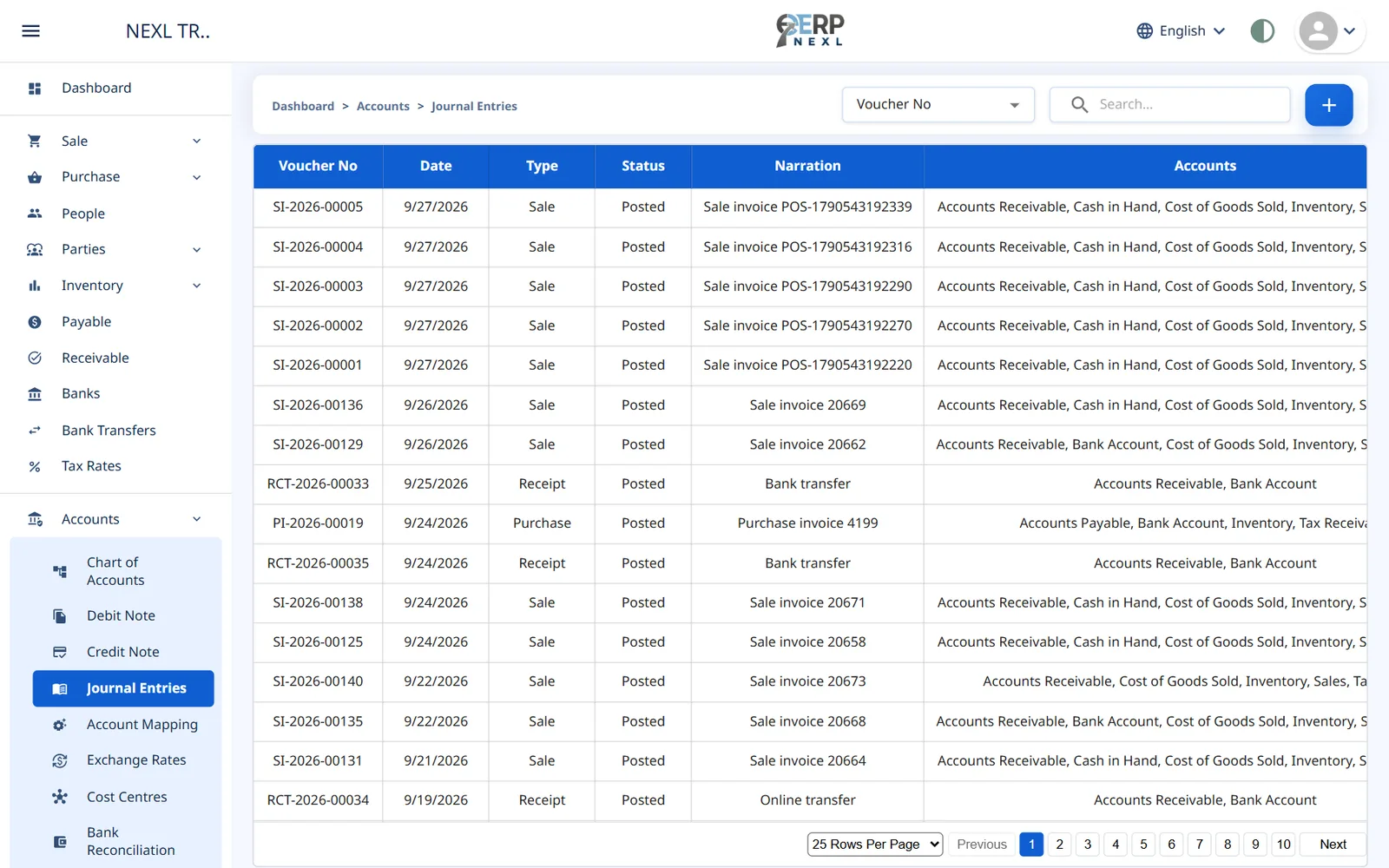
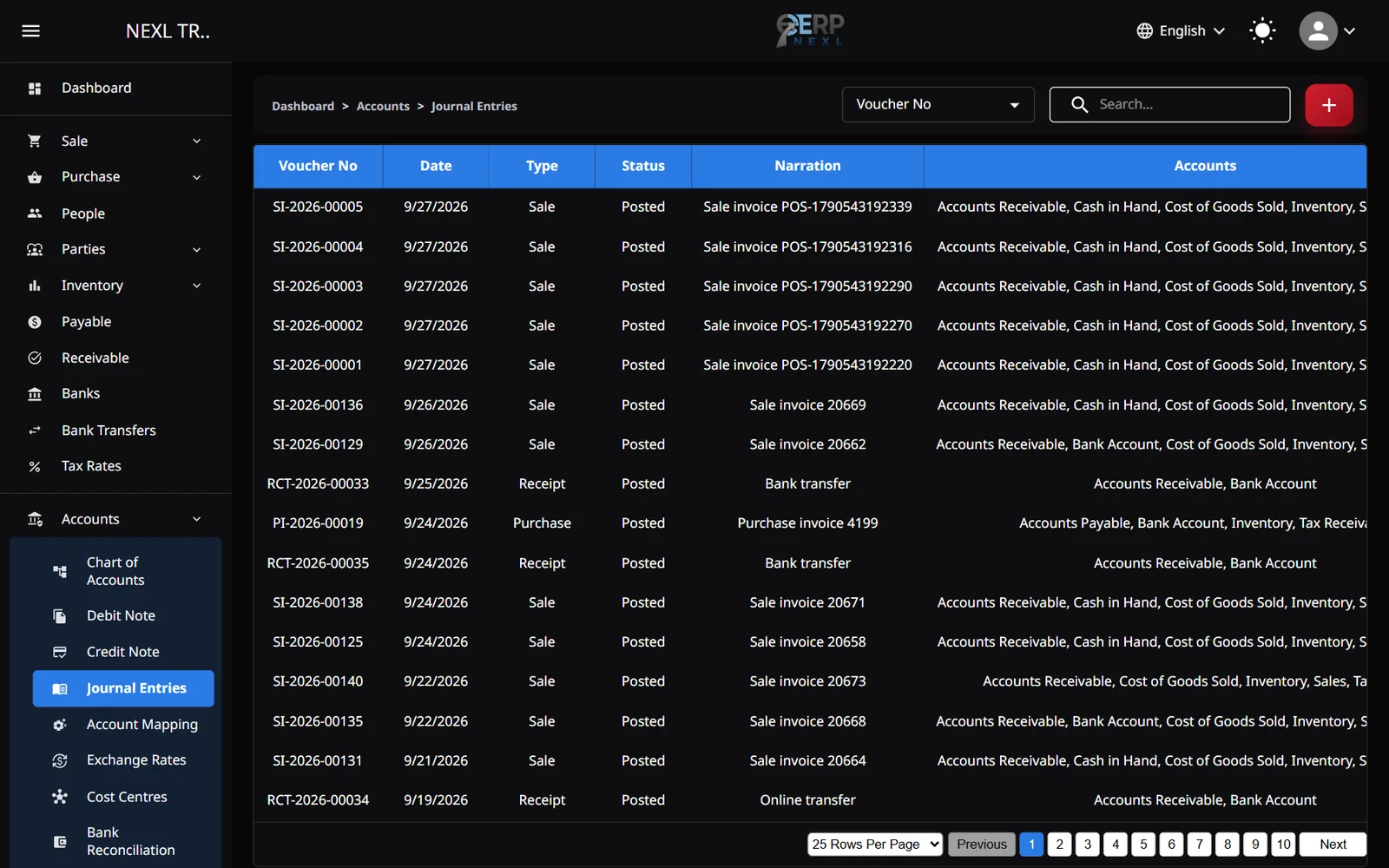
- Cash or bank is chosen by the document's Payment Mode, through Account Mapping: by default, Cash posts to Cash in Hand and Bank to Bank Account.
- Cost of goods sold uses each item's Purchase Price at the moment the sale is first saved; editing the sale later keeps that cost. Keep purchase prices up to date, or let purchases do it with Update item cost from purchases.
- Bank transfers, packing and the opening balances on bank records don't post to the ledger.
When you edit or delete a document
- Editing a document replaces its voucher with a new one that matches the new figures (and gets a new number, so voucher numbers can have gaps).
- Deleting a document removes its voucher, and any receipts or payments that were applied to it go back on account.
- Automatic vouchers can't be changed from Journal Entries. You'll see This voucher was posted by a document. Edit or delete that document instead.
- Nothing dated on or before your lock date can be posted, edited or deleted.
The chart of accounts
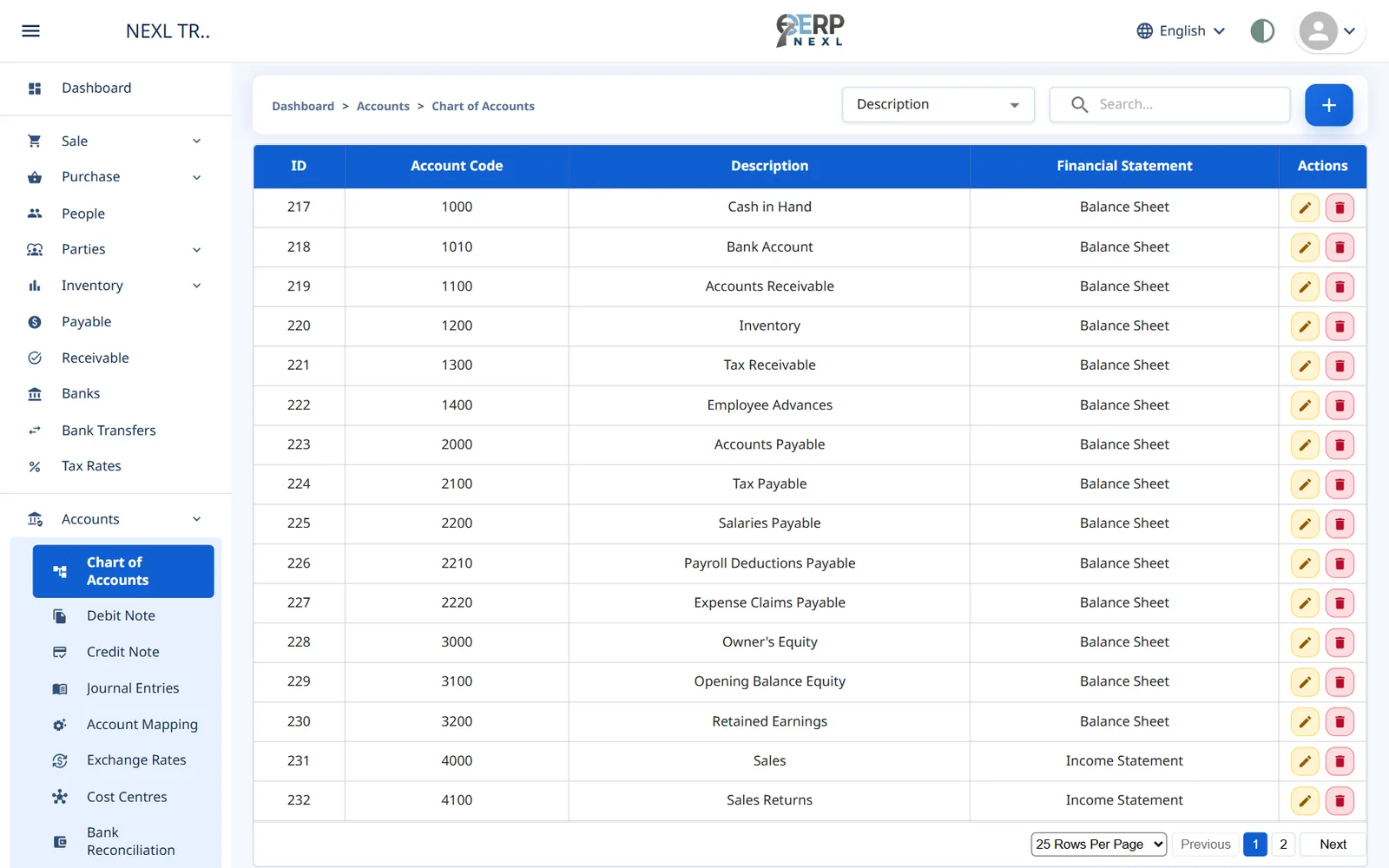
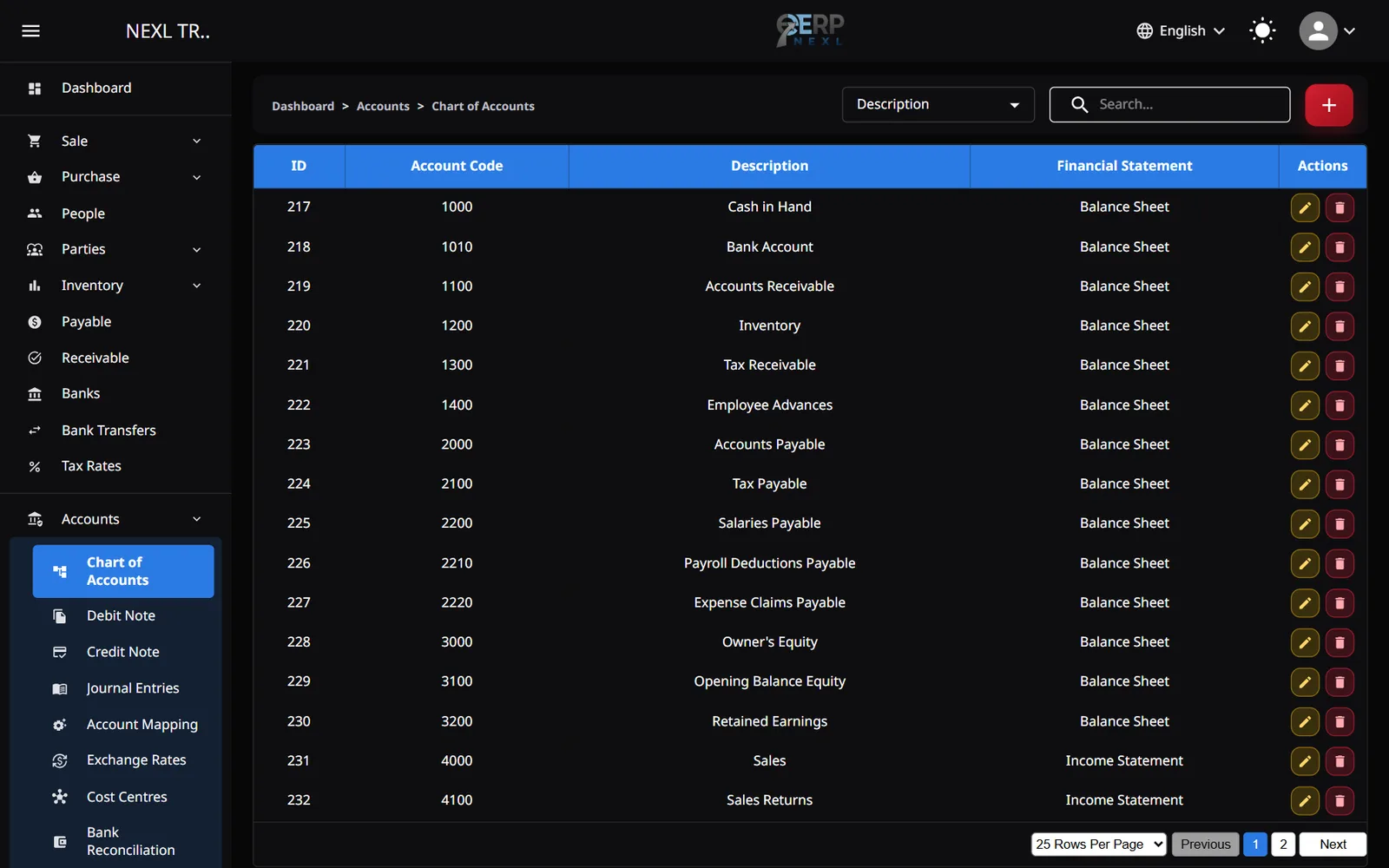
Accounts → Chart of Accounts lists your ledger accounts. ERP Nexl creates a standard set the first time something is posted, or the first time you open Account Mapping, so a brand-new company may see an empty list until then.
| Type | Standard accounts |
|---|---|
| Assets | 1000 Cash in Hand, 1010 Bank Account, 1100 Accounts Receivable, 1200 Inventory, 1210 Work in Progress, 1300 Tax Receivable, 1400 Employee Advances |
| Liabilities | 2000 Accounts Payable, 2100 Tax Payable, 2200 Salaries Payable, 2210 Payroll Deductions Payable, 2220 Expense Claims Payable |
| Equity | 3000 Owner's Equity, 3100 Opening Balance Equity, 3200 Retained Earnings |
| Revenue | 4000 Sales, 4100 Sales Returns, 4200 Other Income, 7100 Exchange Gain |
| Expenses | 5000 Cost of Goods Sold, 5100 Purchase Returns, 5200 Other Expense, 5300 Bad Debt Expense, 5400 Stock Adjustment, 5410 Production Losses, 5420 Inventory Cost Variance, 5430 Production Costs Applied, 6000 Salaries Expense, 6020 Staff Reimbursable Expenses, 7200 Exchange Loss |
Add an account
- Click + on the Chart of Accounts.
- Enter a unique Account Code (for example 6100) and a Description (the account's name, such as Rent).
- Choose the Financial Statement (Balance Sheet or Income Statement) and the Account Type (Asset, Liability, Equity, Revenue or Expense). Reports use the account type to decide where the account appears.
- Choose a Parent Account, or None for a top-level account.
- Click Save.
An account that has entries, or that Account Mapping uses, can't be deleted.
Account mapping
Accounts → Account Mapping tells ERP Nexl which account each automatic entry uses: customer balances, supplier balances, stock, sales income, cost of goods sold, tax payable and receivable, stock adjustments and so on. Each card has a list of accounts; choosing one saves it immediately.
- Changes apply to documents posted from then on; existing entries aren't rewritten.
- Cash and bank postings follow the payment-mode cards, Cash payment mode and Bank payment mode. To send bank receipts to a different bank ledger account, change Bank payment mode.
- Always map to an account without sub-accounts, or postings will fail.
Moving from another system
Opening quantities and opening balances post themselves. Bring your starting position in like this:
- Enter each customer's and supplier's Opening Balance on their record. It posts to Accounts Receivable or Accounts Payable for that party, and shows in its ledger and the aged reports.
- Enter each item's Opening Quantity and Purchase Price. Their value posts to Inventory.
- Post one opening journal entry for the rest, dated the day before you start using ERP Nexl: debit Cash in Hand and Bank Account with their balances, credit any loans, and put the difference to Opening Balance Equity. Leave out receivables, payables and stock: they're already posted.
- Set the lock date to that day so the opening figures can't be changed by accident.
Steps 1 and 2 go into one Opening Balance voucher, against 3100 Opening Balance Equity, dated the day before your first transaction. It updates itself whenever you add, change or delete an opening quantity or a party's opening balance, or change the purchase price of an item that hasn't had a cost update yet. Once the books are locked at that date, a change posts as its own Opening Balance voucher on the first open day instead.
Need the whole guide offline? Can’t find an answer? Contact us.
Download PDF4.0 MB · 95 pages