Production
Production orders
Plan what to make, issue the materials, record what came out with its batch and expiry, and handle customer jobs, labels, batches and corrections.
How an order moves
| Status | What it means |
|---|---|
| Draft | Planned. Nothing has left stock yet. You can edit or delete it. |
| In progress | Materials have been issued. They sit in work in progress until the order is completed or cancelled. |
| Completed | The quantity made is in stock at its production cost. |
| Cancelled | Stopped. Whatever was in work in progress went back to stock or was written off. |
Plan an order
- Open Production → Production Orders and click New order.
- Choose the Item to make. Its default recipe is picked under Recipe; choose another of its recipes, or No recipe (own materials) to list the materials yourself.
- Enter the Quantity to make and, if you like, a Planned date, a Cost centre and Notes.
- For a customer's job, switch on This is a customer job (see Customer jobs).
- Click Create order. The order opens as a draft, with the recipe's materials and extra costs worked out for the quantity, including the expected wastage, and an Estimated cost.
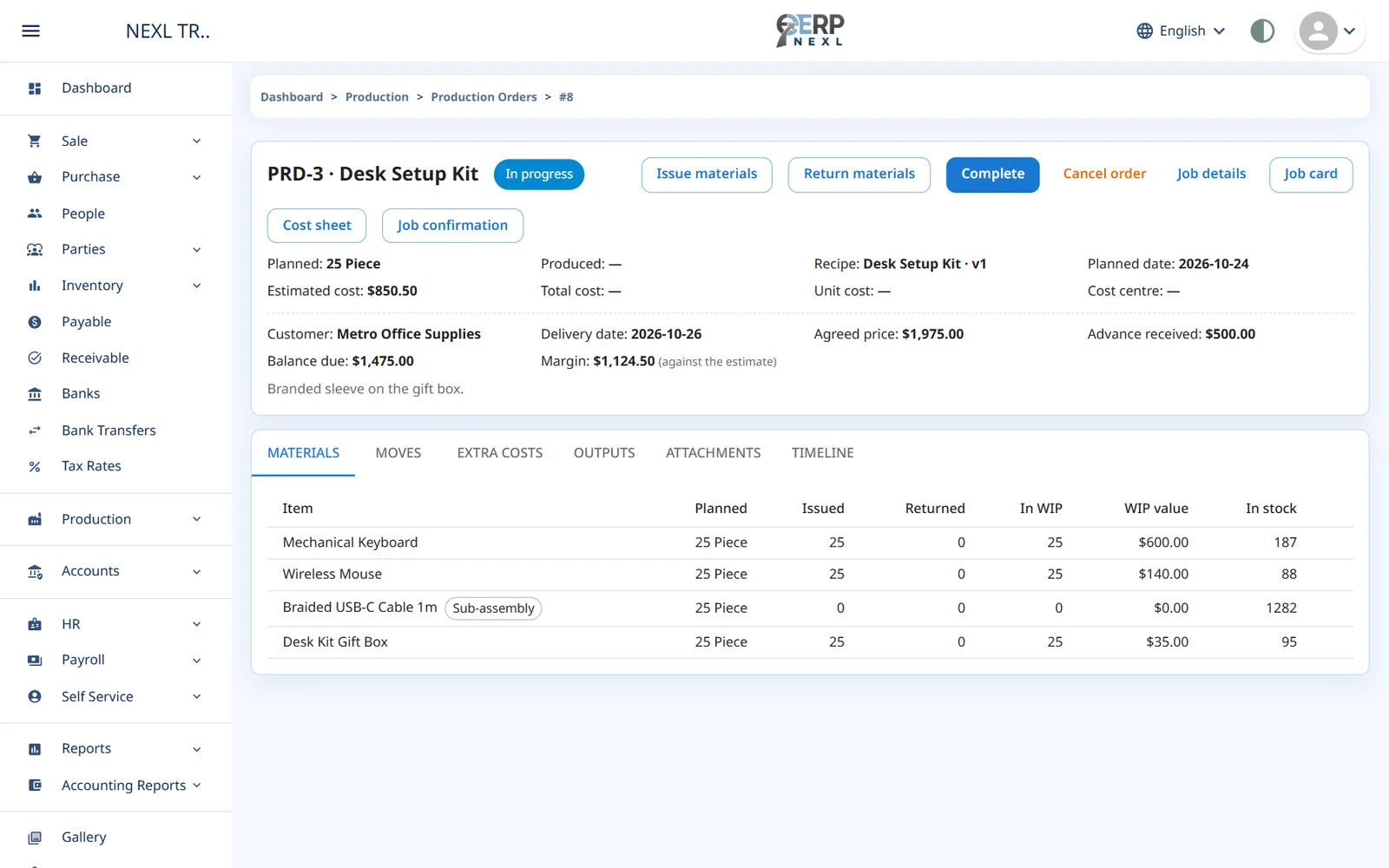
The Materials tab shows what the order needs against what you have In stock. A Short label marks a material you don't have enough of. If that material has its own recipe, Make this first creates a draft order for the quantity you are missing.
Issue and return materials
- On the order, click Issue materials. The window lists what is still to issue.
- Check the Date and each Qty. Remove lines you aren't issuing now, or click Add item to issue something the recipe doesn't list (a substitute, for example).
- Optionally type the Supplier lot printed on each material's packaging, so a batch can be traced back to it later.
- Click Issue. The materials leave stock at their current cost and the order moves to In progress.
- You can issue in several goes, for example a day's materials at a time. Each issue is listed on the Moves tab.
- ERP Nexl refuses an issue that would take a material below zero and names what is short. To allow it, switch on Allow issuing materials below zero stock in Settings → Production.
- Issuing an item that has no cost yet adds nothing to the order's cost; you are warned when that happens.
- Return materials puts back what wasn't used, up to what is still in work in progress.
- While the order is in progress, the bin icon on a move deletes it: the materials go back to stock at the value they left at.
- Document dates can't be in the future.
Extra costs
The Extra costs tab holds the order's labour, electricity, overheads and outside job work, filled in from the recipe for the quantity. Change them, click Add extra cost for more, then Save. With the HR module, a line can name the Employee who did the work. Extra costs can be changed until the order is completed.
Complete an order
- Click Complete.
- Check the Date and enter the Quantity made. Co-products and by-products are worked out for that quantity; change them if the run gave more or less.
- The Batch no is filled in as the order number and today's date, for example PRD-12-261017. Change it if you number batches your own way.
- Made on is today; Expires on is worked out from the recipe's shelf life. A co-product or by-product can have its own batch number and expiry date.
- Click Complete. The outputs come into stock at their production cost, and work in progress for the order goes back to zero.
- Quick produce (on a draft) issues exactly the planned materials and completes the order in one step — handy for routine batches.
- A batch number can be used only once per item.
- After completion, the Materials tab also shows Wastage and yield: the recipe quantity for what was made against what was actually used (see Production costing and reports).
Labels, job cards and other prints
- Labels (on each line of the Outputs tab) print batch labels with the item, batch, made-on and expiry dates and a barcode — the item's barcode, or the item's barcode with the batch number. Choose a 50 × 30 mm or 40 × 25 mm roll or an A4 sheet of 21; the copies start at the quantity made.
- Job card prints the shop-floor copy: what to make and by when, the materials still to issue with space for the lot and a tick, who does the work, blanks for the result and the first attached picture. It shows no prices.
- Cost sheet prints what the order cost: materials, extra costs, the by-product credit, each output's value and unit cost, and the estimate against the actual.
- Job confirmation (customer jobs) prints what the customer agreed: item, quantity, agreed price, advance, balance and delivery date, with the first attached picture. It shows no costs.
Attachments
The Attachments tab keeps drawings, photos and specifications with the order. Add an optional caption, click Attach a file and choose an image or a PDF of up to 10 MB. Only your company's users can open them.
Customer jobs
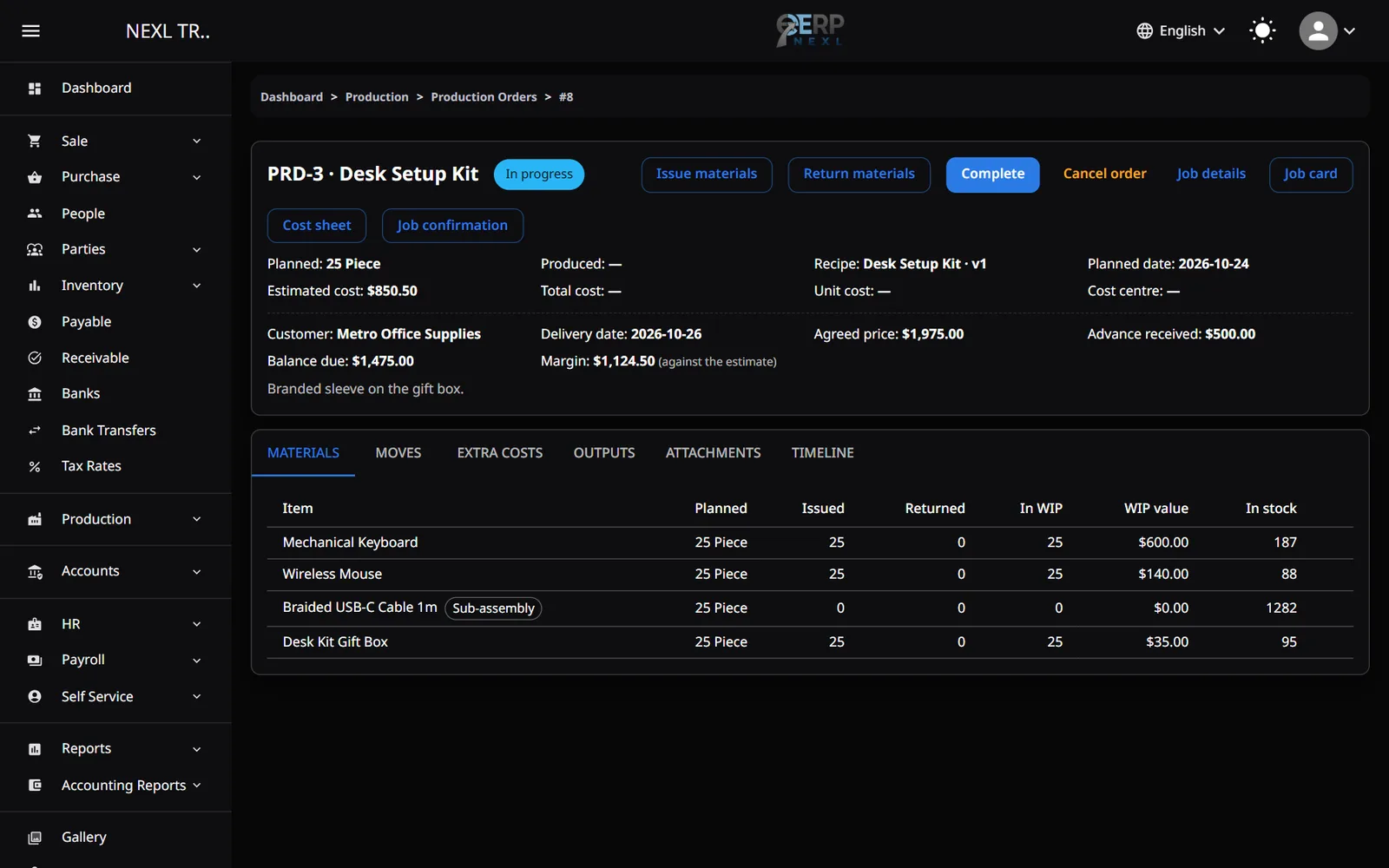
For made-to-order work, switch on This is a customer job when you create the order, or click Job details on it later. Enter the Customer (picked from your customers with the Sale & Purchase module, or typed), the Agreed price, the Advance received and the Delivery date. The order then shows the Balance due and the Margin: the agreed price less the cost — the estimate until the order is completed, the actual cost after.
Cancel, reverse and correct
- Cancel order on a draft simply cancels it. On an order in progress, choose to return everything still in work in progress to stock, or to write it off as a production loss (spoiled goods). A reason is required.
- Reverse takes a completed order's outputs back out of stock and returns the order to In progress, so you can correct and complete it again. It is only possible while its date is in an open period and none of what it made has been sold or used since.
- Delete removes a draft. An order with movements can't be deleted; cancel it instead.
- The Timeline tab records who did what and when, with the reasons given.
Batches
The Batches tab on Production → Production Orders has two parts:
- Expiring batches lists batches expiring within the window you choose (7, 30, 90 or 365 days), expired ones first. ERP Nexl doesn't keep stock per batch yet, so the item's total stock is shown alongside. Write off batch opens a stock adjustment already filled in for it; after you save it, the batch shows what was written off.
- Trace a batch: type a batch number (and the item, if the number is used for more than one) to see its order and every material issued for it, with the supplier lots.
Starting with jobs already in progress
If work was already under way when you started using ERP Nexl, enter each unfinished job as an order:
- Create the order and issue the materials it has already used, dated the day the work started (they come out of your opening stock).
- Add the labour and other costs so far as extra cost lines.
- Complete it when it's done, as usual.
The Work in progress check report compares what open orders hold with the work-in-progress balance in your books.
Outside job work
Work sent out to someone else — a dyer, polisher or embroiderer — goes on the order as a Job work extra cost line. ERP Nexl doesn't yet have a document for the subcontractor's bill: with the Accounting module, record what you owe them as a journal entry. Don't enter it as a purchase invoice, which would add stock you never received.
Settings
- Settings → Production: the Production Order No Prefix (PRD- by default) and Allow issuing materials below zero stock.
- Give other roles the four Production pages — Recipes, Production Orders, Cost Types and Production Reports — on the Permissions page (see Users, roles and permissions). Only the owner has them at first.
Need the whole guide offline? Can’t find an answer? Contact us.
Download PDF4.0 MB · 95 pages