Items and stock
Items, categories and tax rates
Set up what you sell and buy: tax rates, categories, packing labels and items with their prices, barcodes and opening stock.
Every item needs a category, a packing label and a tax rate, so create those first. The order below saves you from leaving the item form half-filled.
Tax rates
- Open Tax Rates in the sidebar and click +.
- Enter a Name (for example GST 18%) and the Rate (%), from 0 to 100.
- Tick Tax Inclusive ("Price includes tax") if the prices you type already include this tax. Leave it unticked if the tax is added on top.
- Click Save.
How tax is worked out
- Each invoice line takes the tax rate of its item. The rate can't be changed on the invoice.
- Tax is calculated line by line, on the line amount after any line discount. Exclusive: the tax is added on top (100 at 18% → 18 tax, 118 total). Inclusive: the tax is taken out of the price (118 at 18% inclusive → 100 + 18 tax).
- A discount on the whole invoice doesn't reduce the tax.
- Saved invoices keep the rate they were saved with, even if you change the rate later.
A tax rate that is used by any item or document can't be deleted. With the Accounting module, the Tax Report shows the tax you collected and paid.
Categories
Categories group your items, for example Mobiles and Accessories. They appear in the item list and as the category filter on the POS screen.
- Open Inventory → Category and click +.
- Enter a Description and click Save.
Packing
Packing is the label that says how an item is sold, such as Piece, Box or Kg.
- Open Inventory → Packing and click +.
- Enter a Description (3 to 100 characters) and a Unit (1 or more). Parent is optional.
- Click Save.
Items
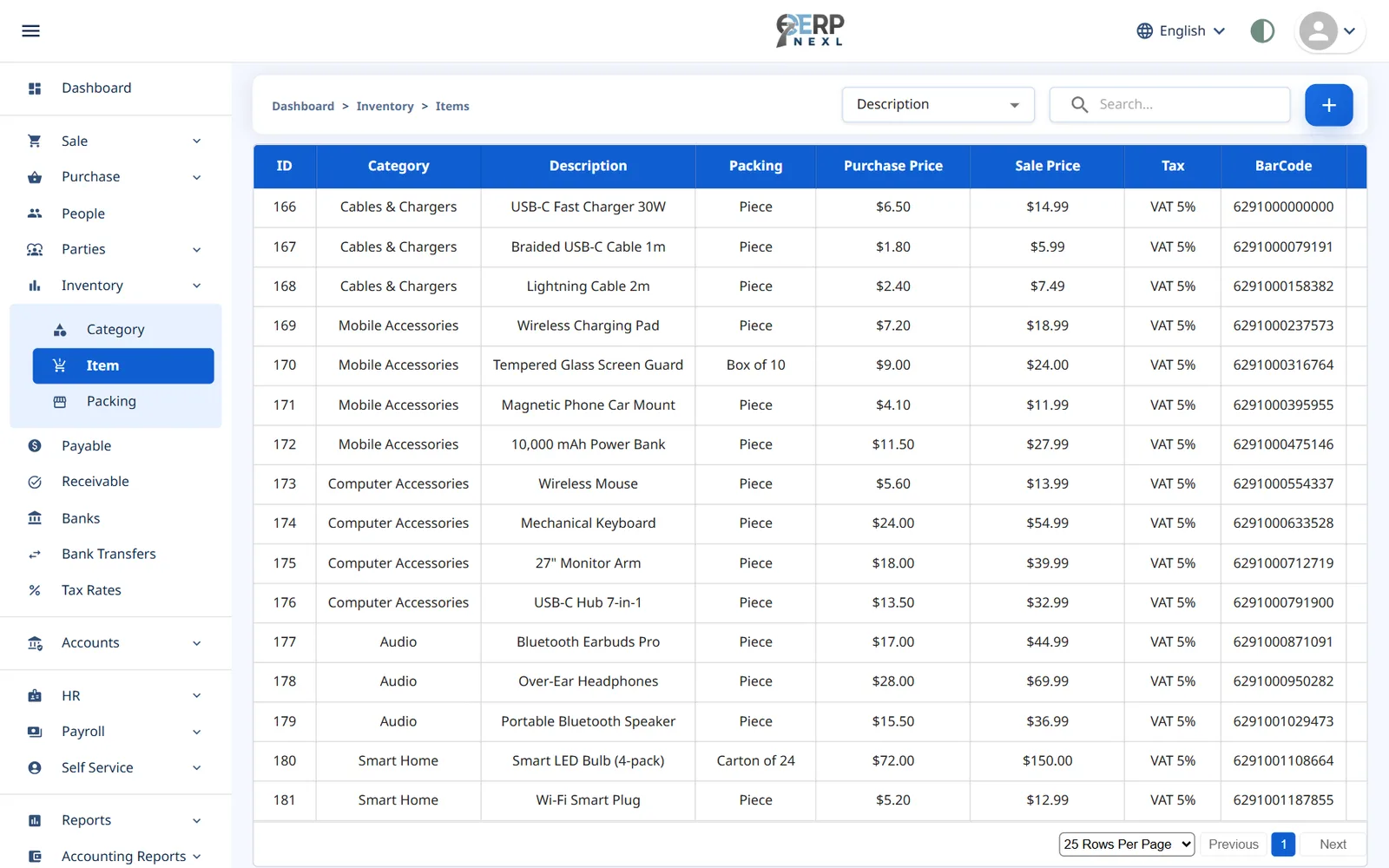
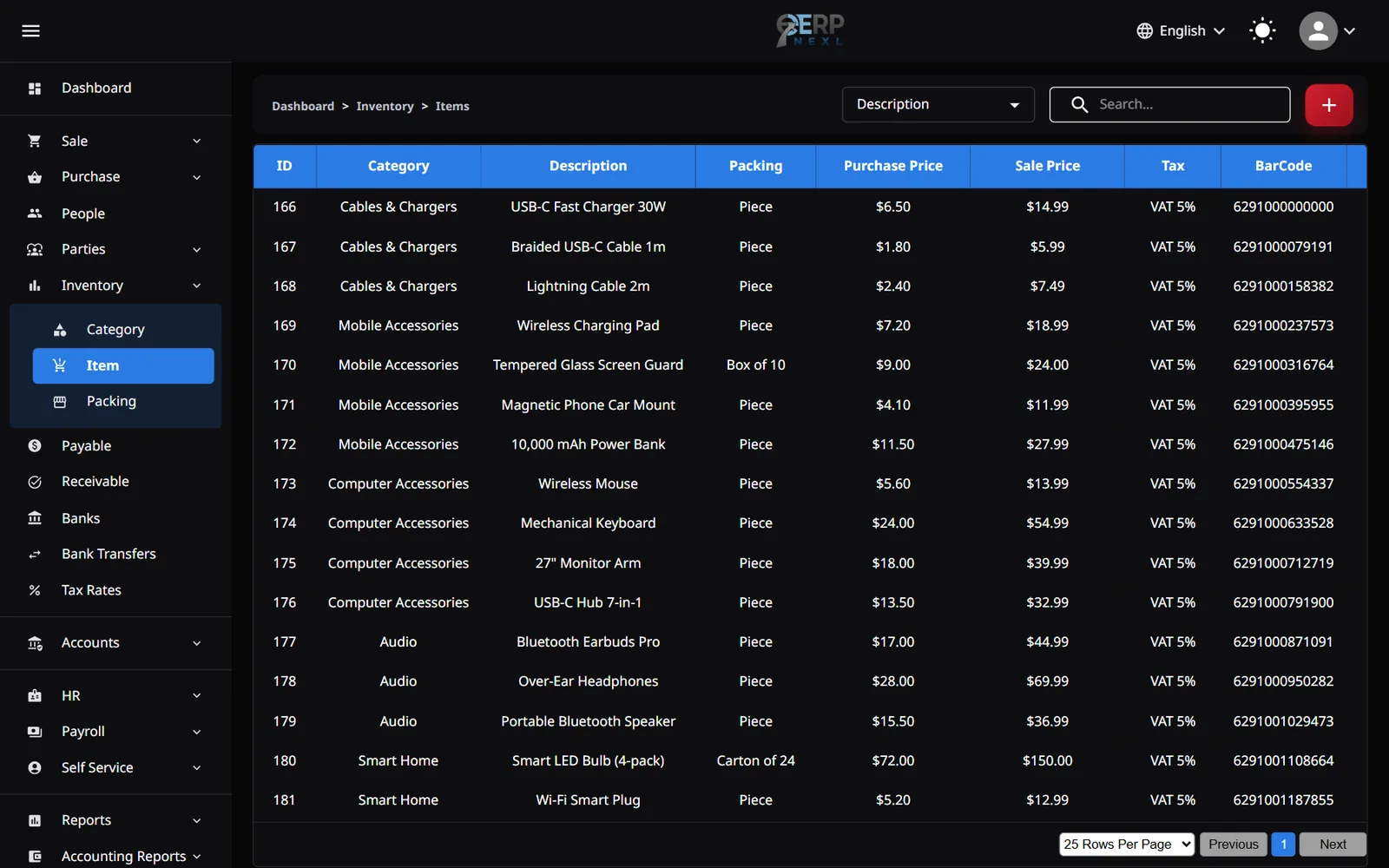
- Open Inventory → Item and click +.
- Optionally click Select Image and choose a product photo from your gallery.
- Choose the Category, Packing and Tax. Each has a + to create a new one without leaving the form.
- Enter the Description: this is the item's name, as it appears on invoices, receipts and the POS (3 to 100 characters).
- Enter the Purchase Price (what you pay for one unit) and the Sale Price (what you sell one unit for).
- Enter the Opening Quantity: how many you have in stock right now. Its value (quantity × purchase price) is posted to your books as opening stock.
- Optionally enter the Barcode printed on the product, so it can be scanned at the POS.
- Click Save.
The item list shows each item's Opening Quantity and current Stock. Click the Item Ledger icon on a row to see every movement in and out of stock by date, with a running balance you can print.
Things to know about items
- Purchase Price is your cost. It values the cost of goods sold on every sale and the value of stock adjustments. With Update item cost from purchases on (the default for new companies), each purchase updates it to the average cost of your stock. With it off, a purchase at a different price does not change it, so edit the item when your cost changes.
- Quantities can have up to 3 decimals everywhere in ERP Nexl, so you can stock and sell by weight or length: 2.5 kg, 1.75 m, 0.125 L.
- Each item has one sale price. You can type a different price on a sale invoice line, but not at the POS.
- Keep barcodes unique. The ERP doesn't stop two items sharing a barcode, and the POS adds the first match.
- Opening Quantity is for your starting stock only. Changing it later changes today's stock and your opening stock in the books, with no record of why. To correct stock after you've started trading, use a stock adjustment.
- Deleting an item removes it from lists, the POS and new documents. Invoices that already include it keep showing it.
Need the whole guide offline? Can’t find an answer? Contact us.
Download PDF4.0 MB · 95 pages