HR and payroll
HR setup and employees
Set up departments, designations and holiday lists, add your employees with their ID and bank details, and handle leavers.
Set up in this order
- Departments and Designations (job titles).
- Holidays: at least one holiday list with your weekly days off, marked as the default.
- Employees.
- Leave types and yearly allocations (see Attendance and leave).
- Payroll: salary components, structures and assignments (see Payroll).
Departments and designations
Open HR → Departments and click + to add a Department Name (and optionally a Parent Department, for example Sales under Operations). Add job titles the same way under HR → Designations. Names must be unique.
Holiday lists
A holiday list says which weekdays are off and which dates are public holidays. Leave and payroll use it to count working days.
- Open HR → Holidays and click +.
- Enter a List Name (for example Head office 2026) and the From and To dates for reference.
- Tick the Weekly Offs. A new list starts with Saturday and Sunday ticked; change them to match your working week.
- Tick Default list for new employees and click Save.
- Click the calendar icon on the list's row to add public holidays: a Date and Description for each, then Add.
- Only one list can be the default. It applies to every employee who doesn't have a list of their own.
- Give an employee a different list (for example for a shop that opens on Sundays) in their Holiday List field.
- A list that is assigned to employees can't be deleted.
Add an employee
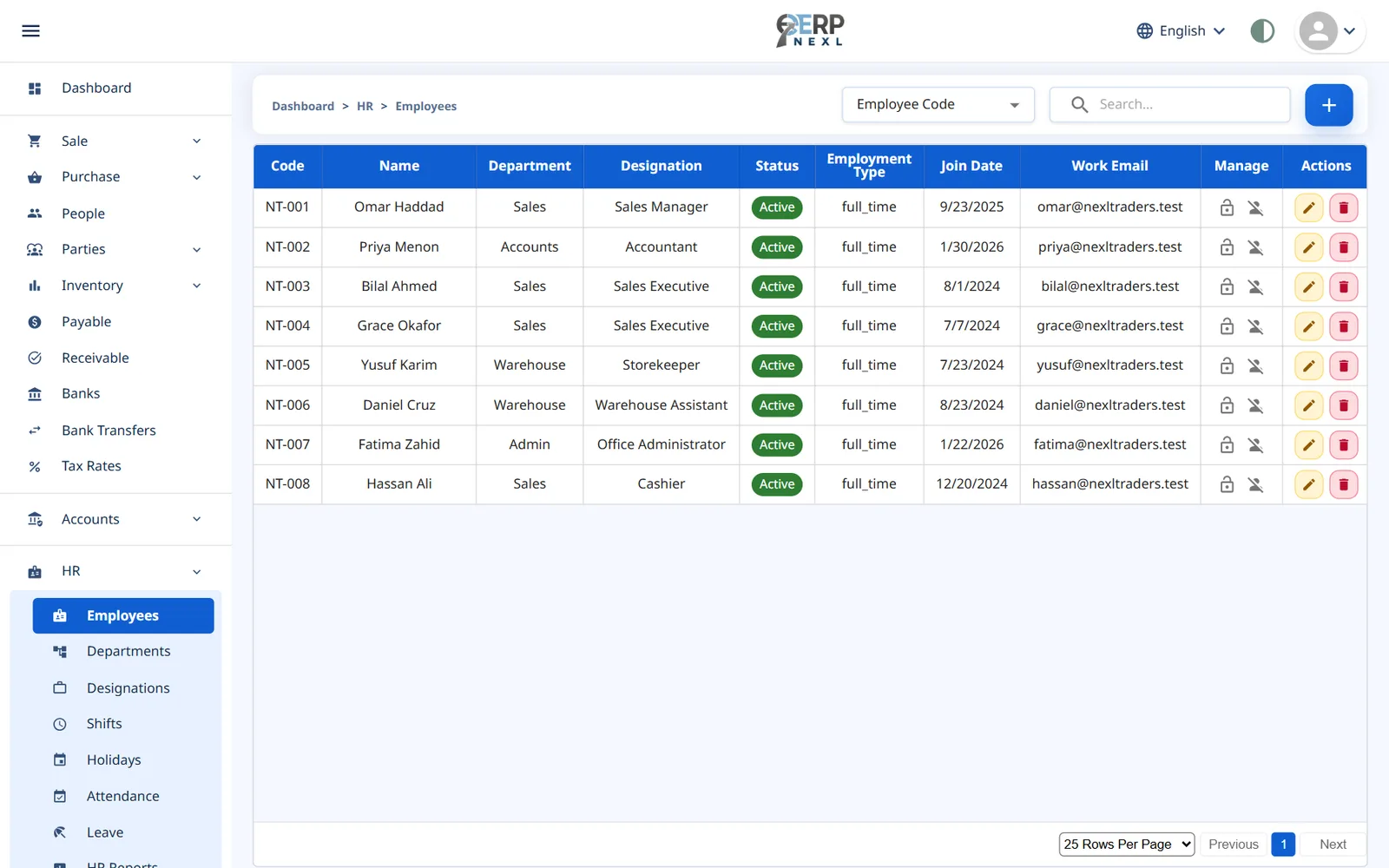
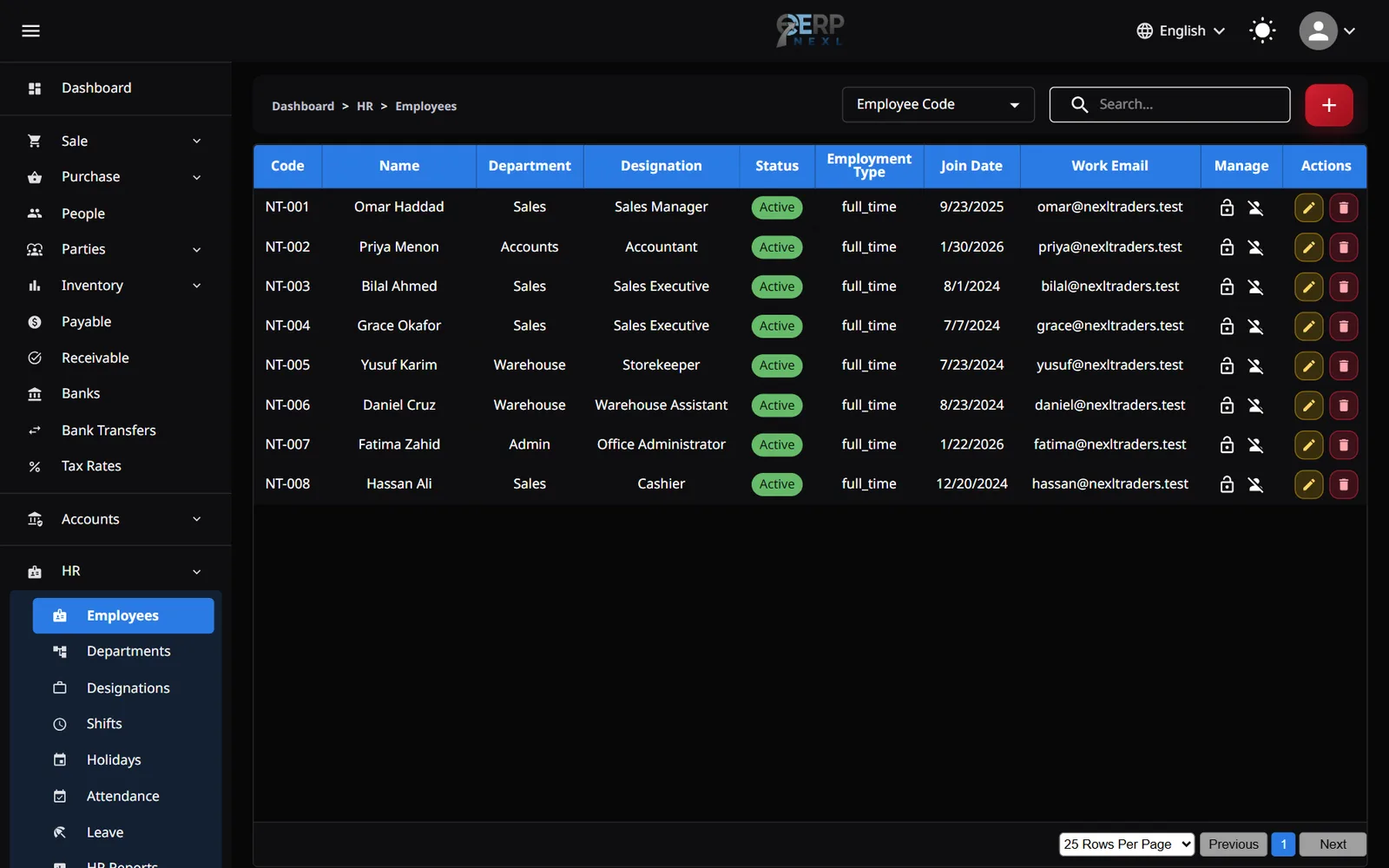
- Open HR → Employees and click +.
- Enter a unique Employee Code (up to 30 characters, for example EMP-001), the First Name and the Join Date. Everything else is optional.
- Add the Gender, Date of Birth and Employment Type (Full time, Part time, Contract or Intern; Full time if left blank).
- Choose the Department, Designation and Holiday List. Each has a + to create one on the spot.
- Add contact details: Contact No, Work Email, Personal Email, Address, and an Emergency Contact Name and Emergency Contact No.
- To let the employee use self service, choose their login under User Account.
- Click Save. The employee starts as Active.
ID documents and bank details
Sensitive details live in a separate, protected window. Click the lock icon in the Manage column of an employee's row to open Identifiers & Bank Details:
- Identity Documents: add an ID Type (such as national ID or passport) and ID Number. One of each type per employee.
- Bank Accounts: add the Bank, Account Title, Account No and IBAN.
ID and account numbers are masked (for example **4821). Only roles with the Employee PII Access permission can click Reveal** to see them in full, and every reveal is recorded. Saved rows can't be edited or deleted, so check numbers before adding them.
When an employee leaves
- Click the Terminate icon in the Manage column.
- Enter the Termination Date (it can't be before the join date) and click Terminate.
- The employee is paid up to the termination date in that month's payroll run, then drops off the attendance grid and future runs.
- Termination can't be undone. If someone rejoins, add them again with a new employee code.
- Delete is only for records created by mistake. An employee with any attendance, leave, payslip, advance or claim history can't be deleted; terminate them instead.
Linking an employee to a login
- Create a login for the employee under Users, with a role that has the self-service permissions (see Employee self service).
- Edit the employee and choose that login under User Account (self-service login).
Each login can be linked to one employee only.
Need the whole guide offline? Can’t find an answer? Contact us.
Download PDF4.0 MB · 95 pages